We have seven different ways to fix Valorant black screen In Windows. Try all these steps, Hope It will fix the issue.
- Update Graphics Driver.
- Repair Game Files.
- Set Display Mode To ‘Dedicated GPU Only’ From NVIDIA or AMD’s Control Panel.
- Change The VGC Startup Type To Automatic.
- Restart Your PC After Setting VGC Startup Type to Automatic.
- Run Riot Client As An Administrator.
- Stop Nahimic Services.
Follow all these steps carefully ,If you have to fix the issue. I hope It will work 100% if you apply all these steps carefully.
Update Graphics Driver
Whether you’re NVIDIA or AMD’s user, First of all Install latest graphics driver from their App. This is the most important task you have to do to fix Valorant black screen in Windows.
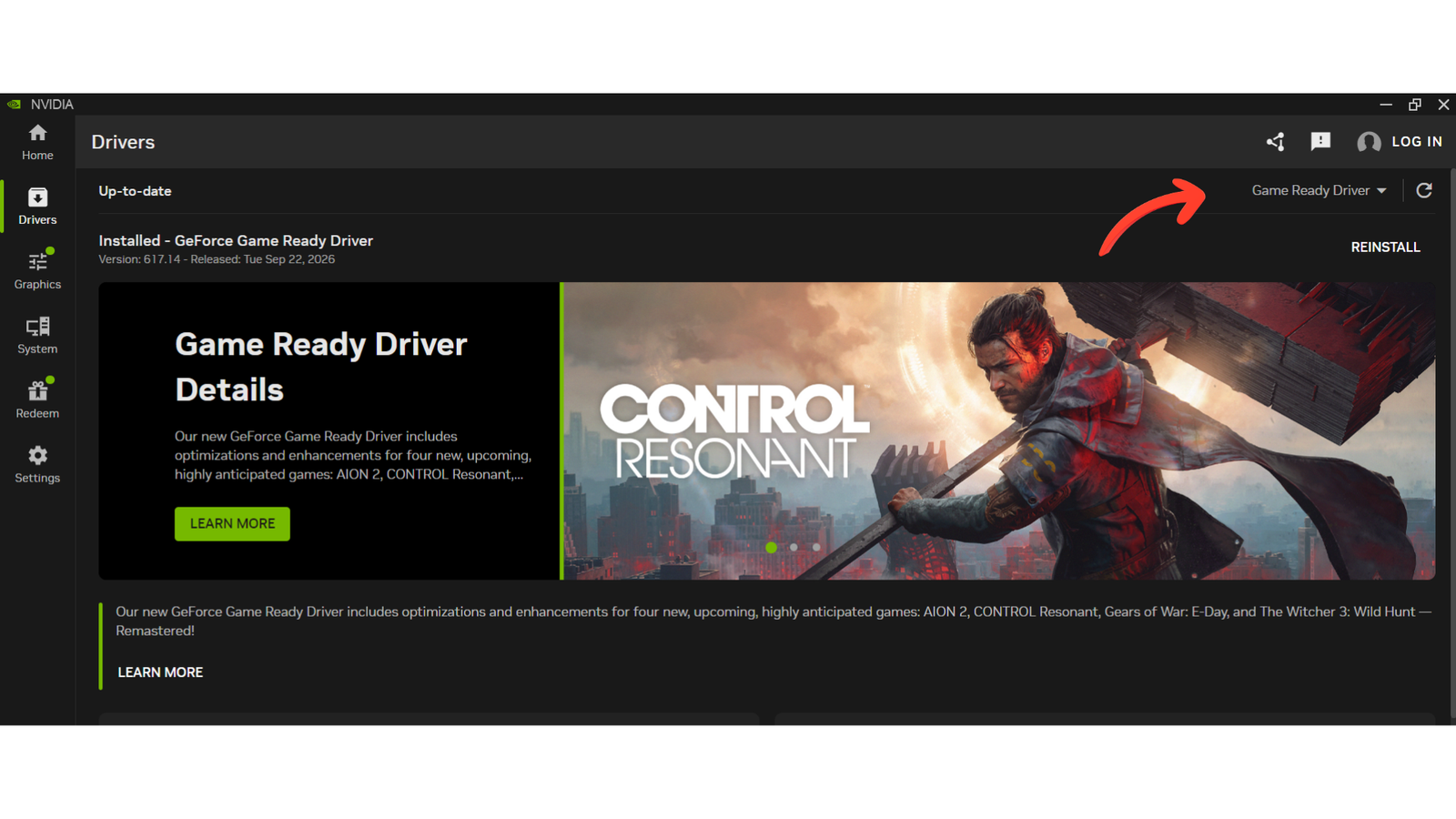
If we don’t Install latest Graphics drivers then it leads to Lower Gaming Performance In Newer Games, Display Issue, Bugs and Crashes etc.
Repair Game Files
VALORANT has so many files that the game needs to start and run correctly, sometimes a file can be corrupted due to an update.That’s why we face problem in opening VALORANT.
To solve this problem:
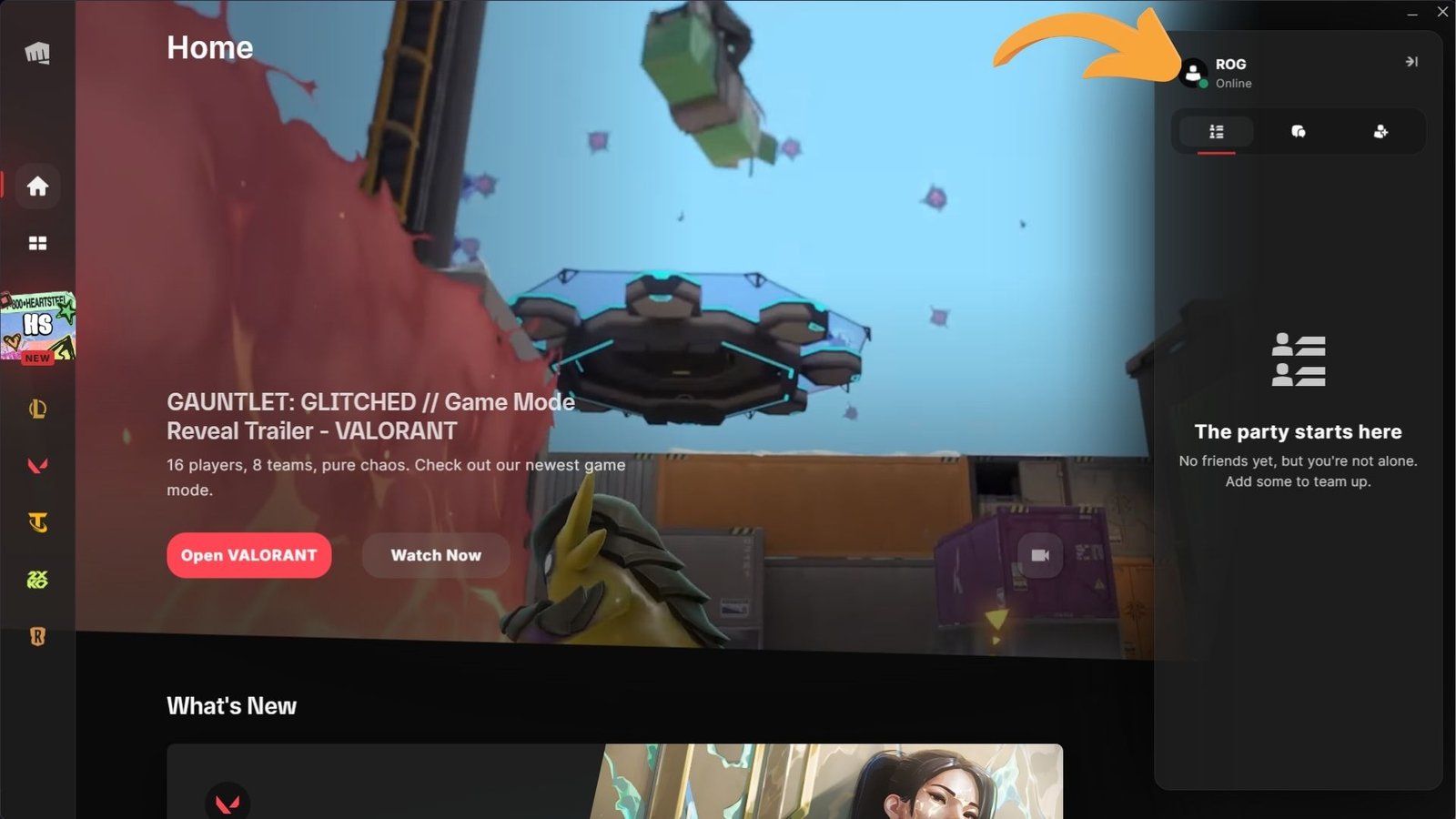
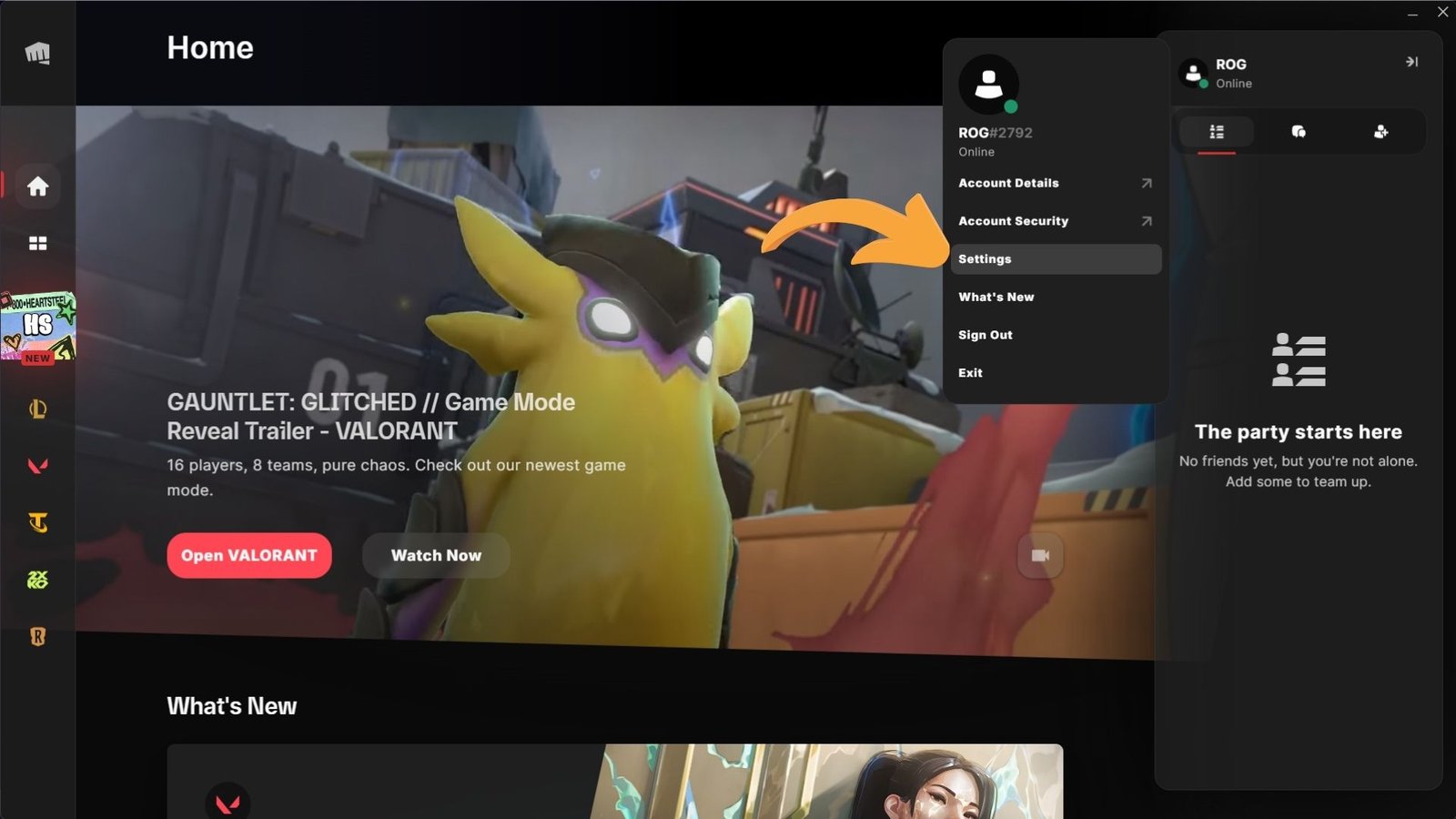
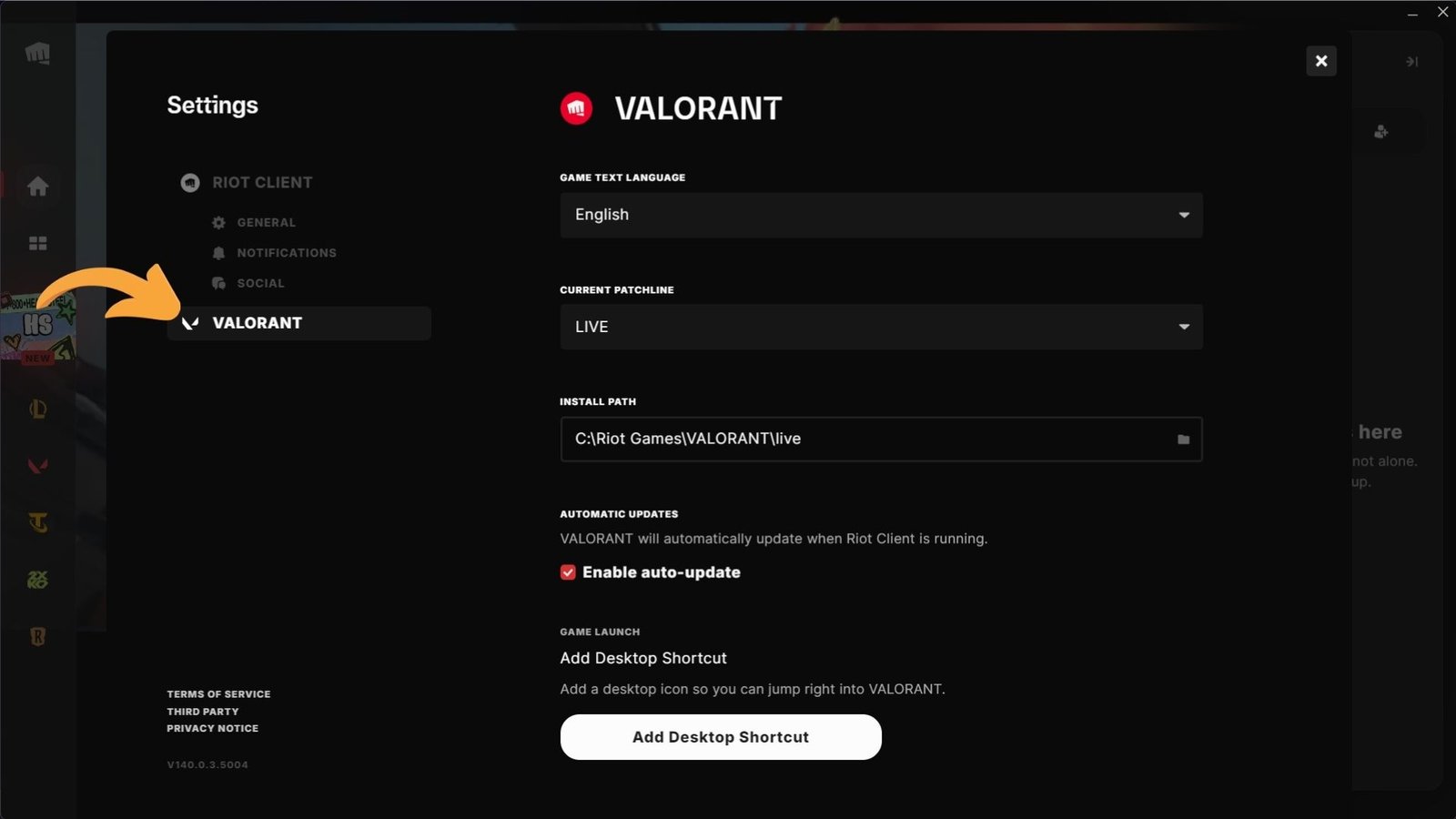
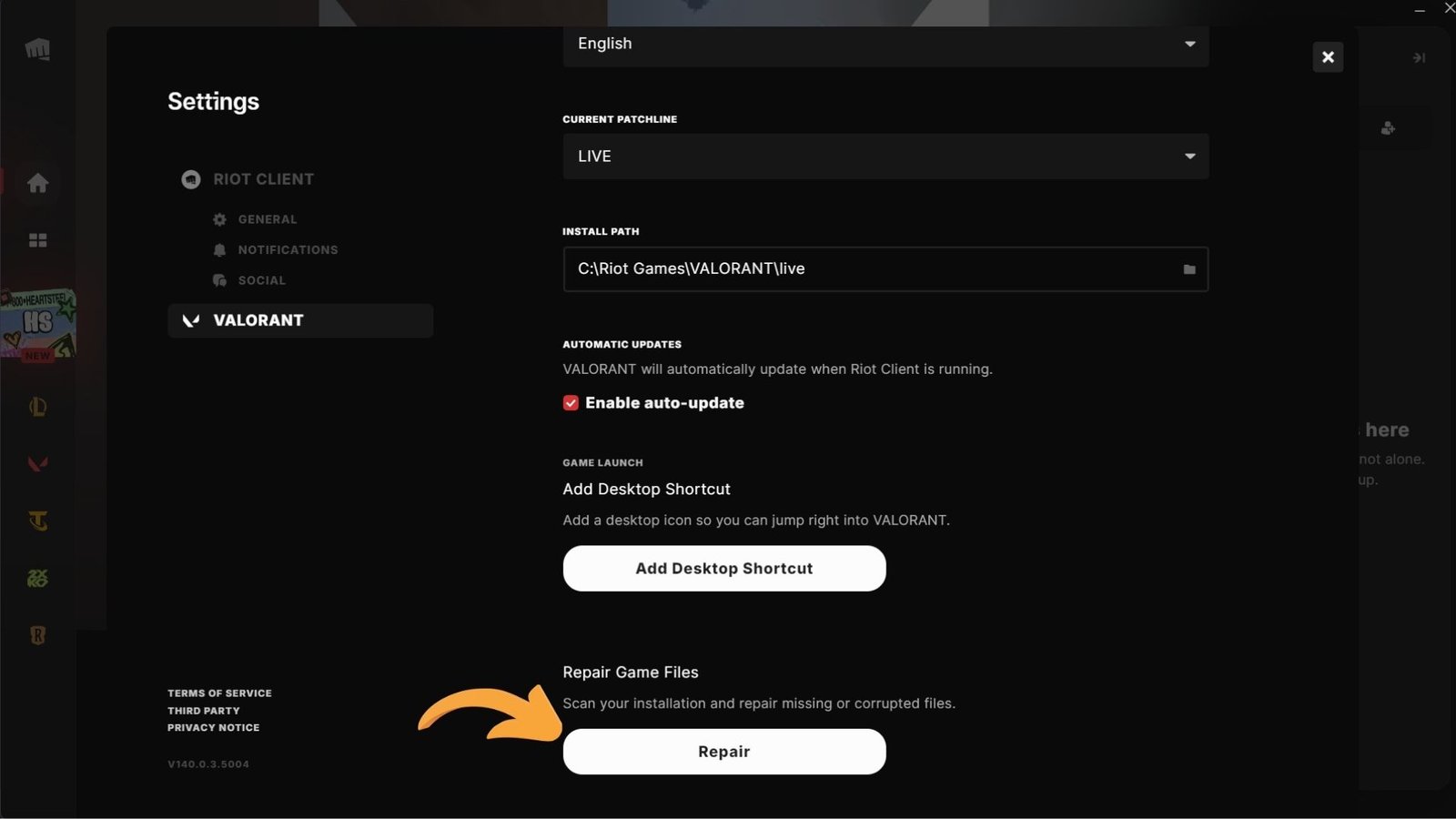
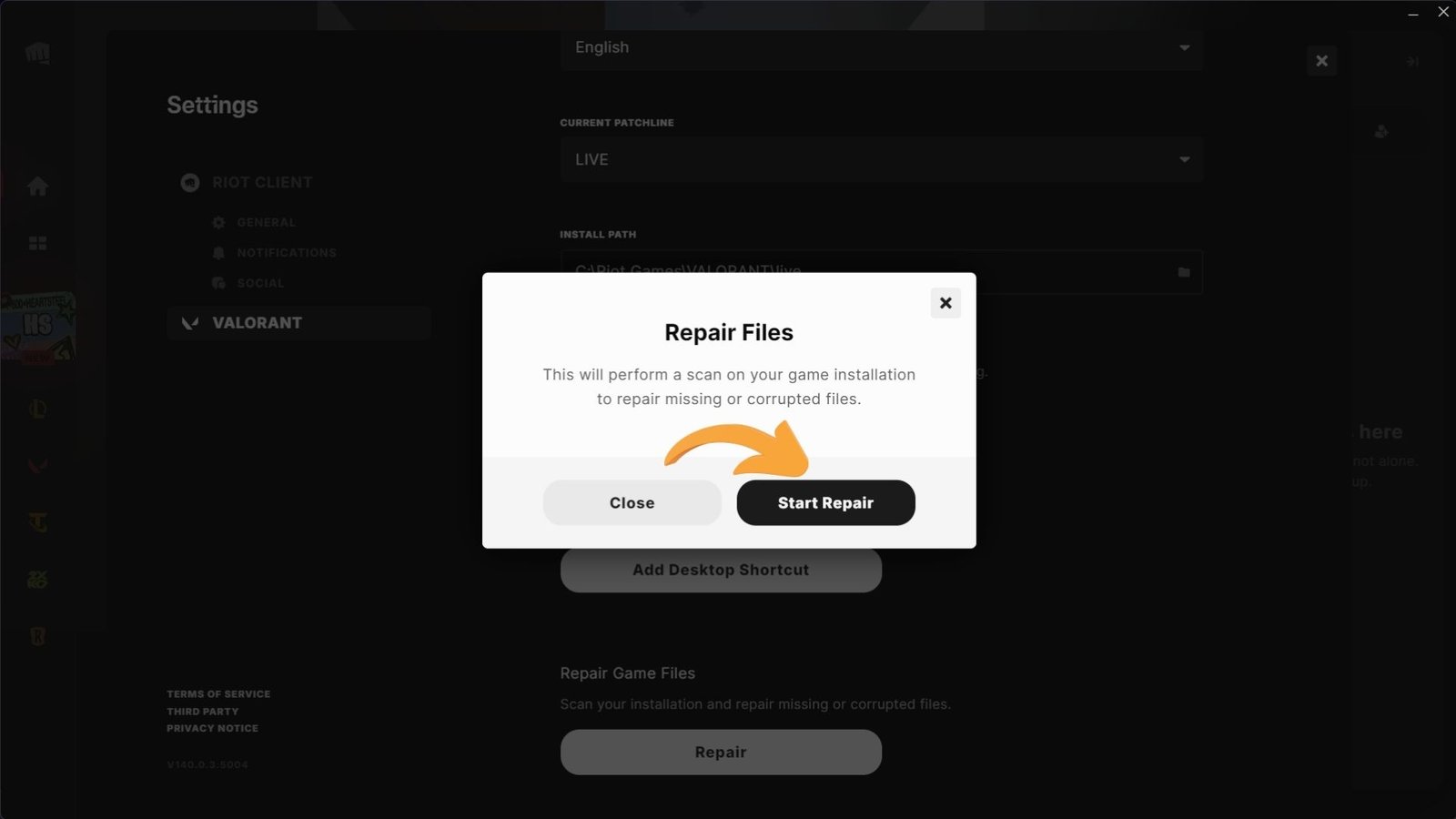
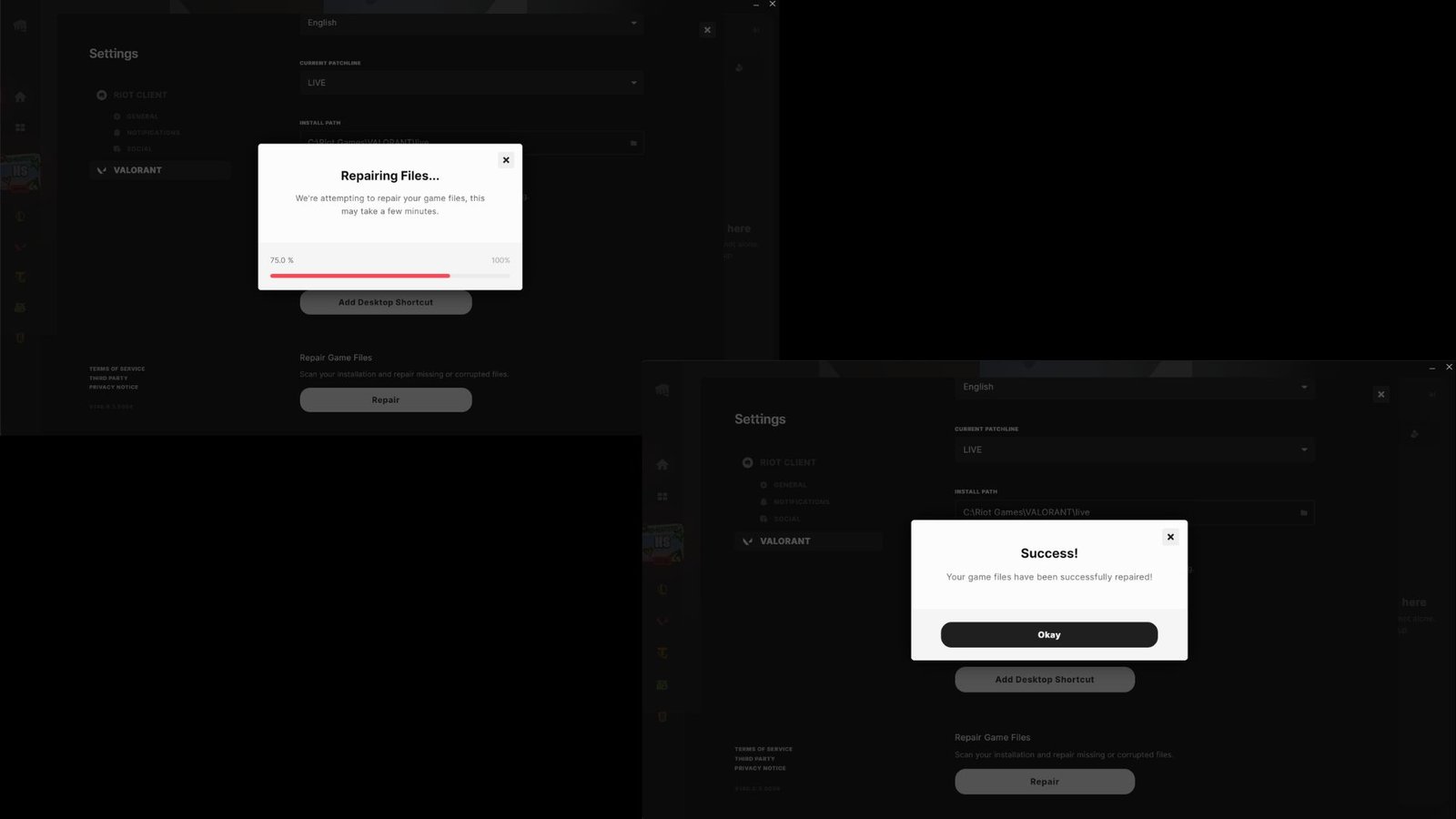
Open ‘Riot Client’ then select your profile then click on Settings then choose ‘Repair Game File’.Wait till your game file get repaired, It will take some time.
Hope this will fix valorant black screen in windows.
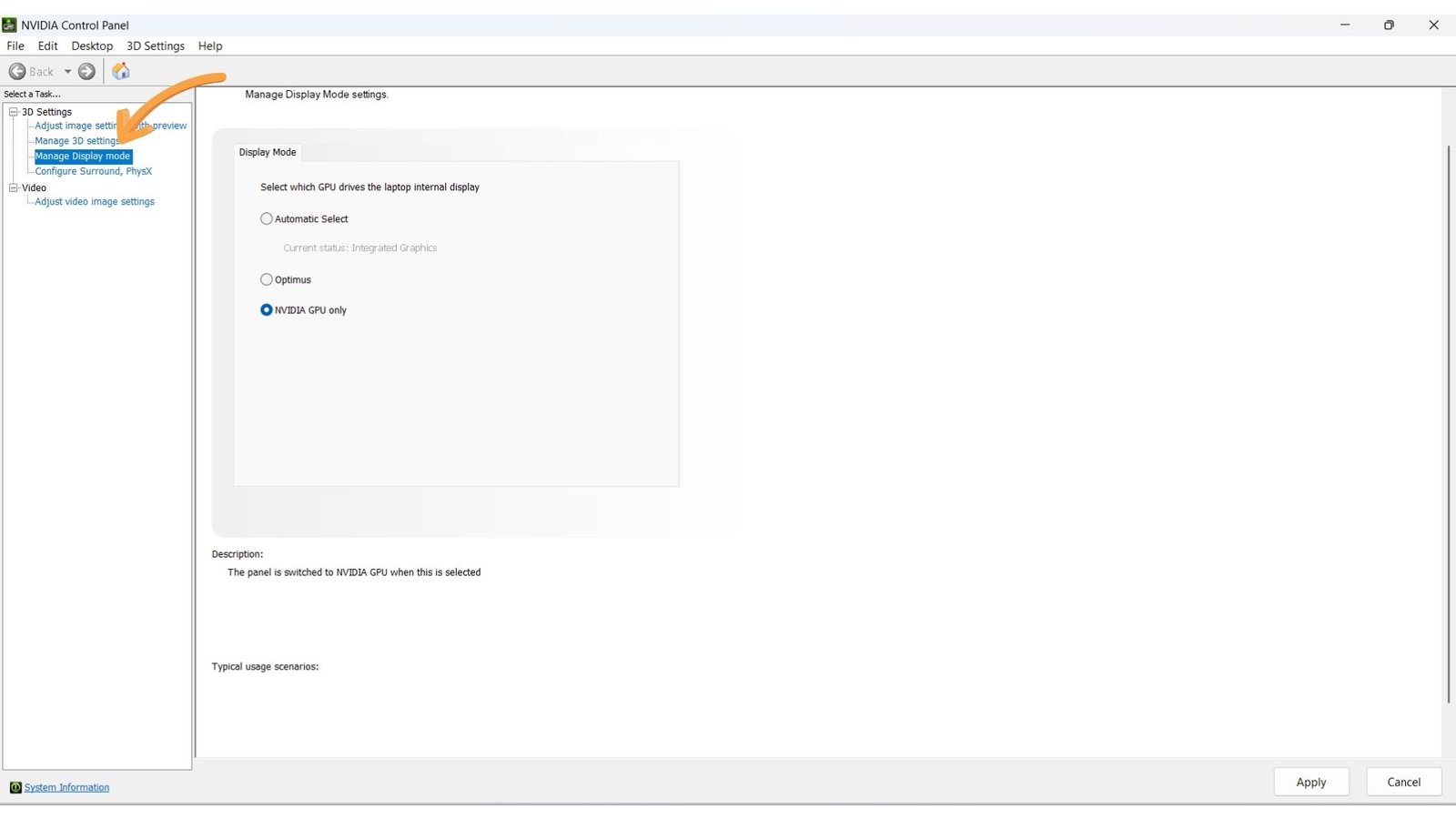
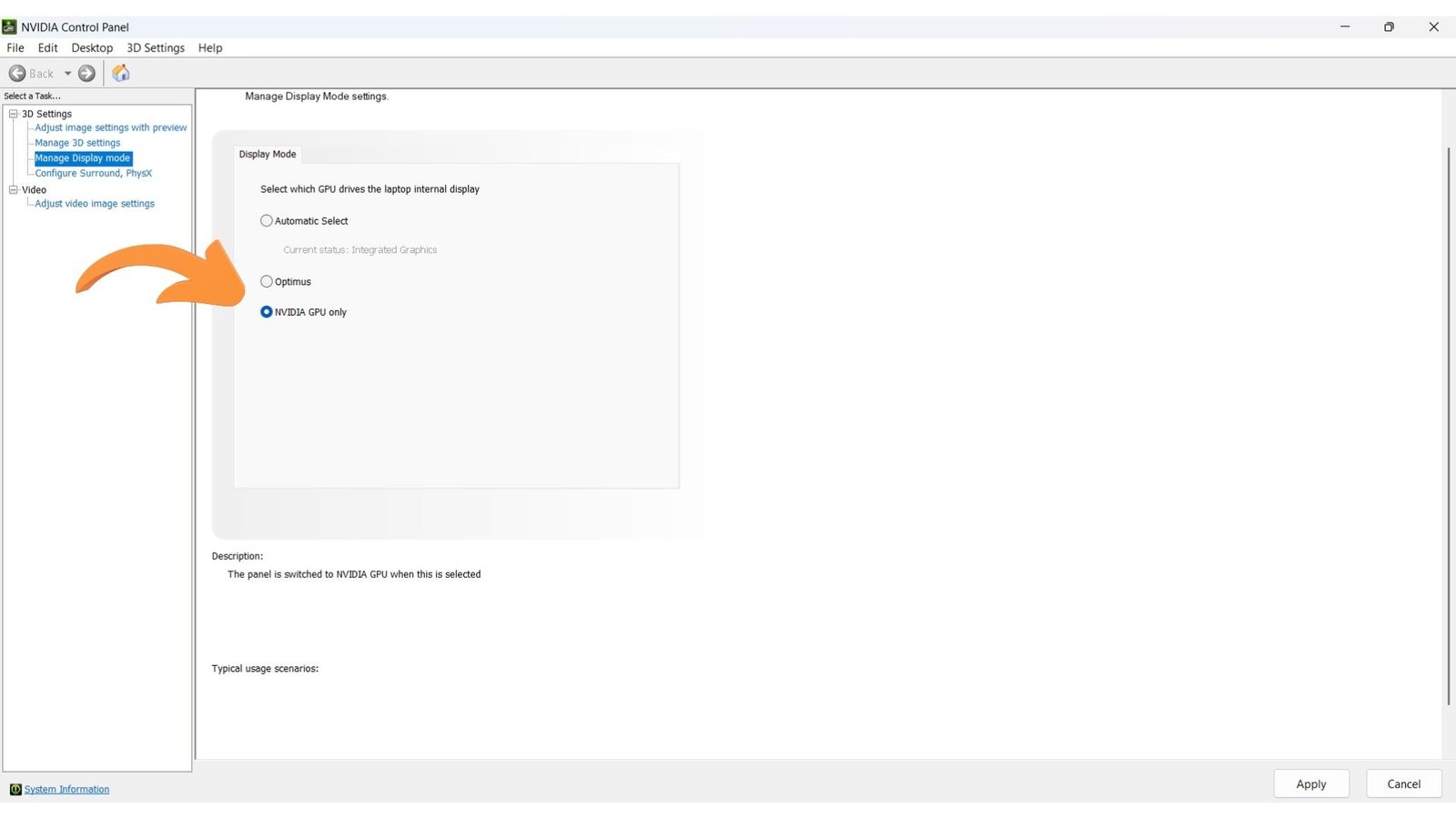
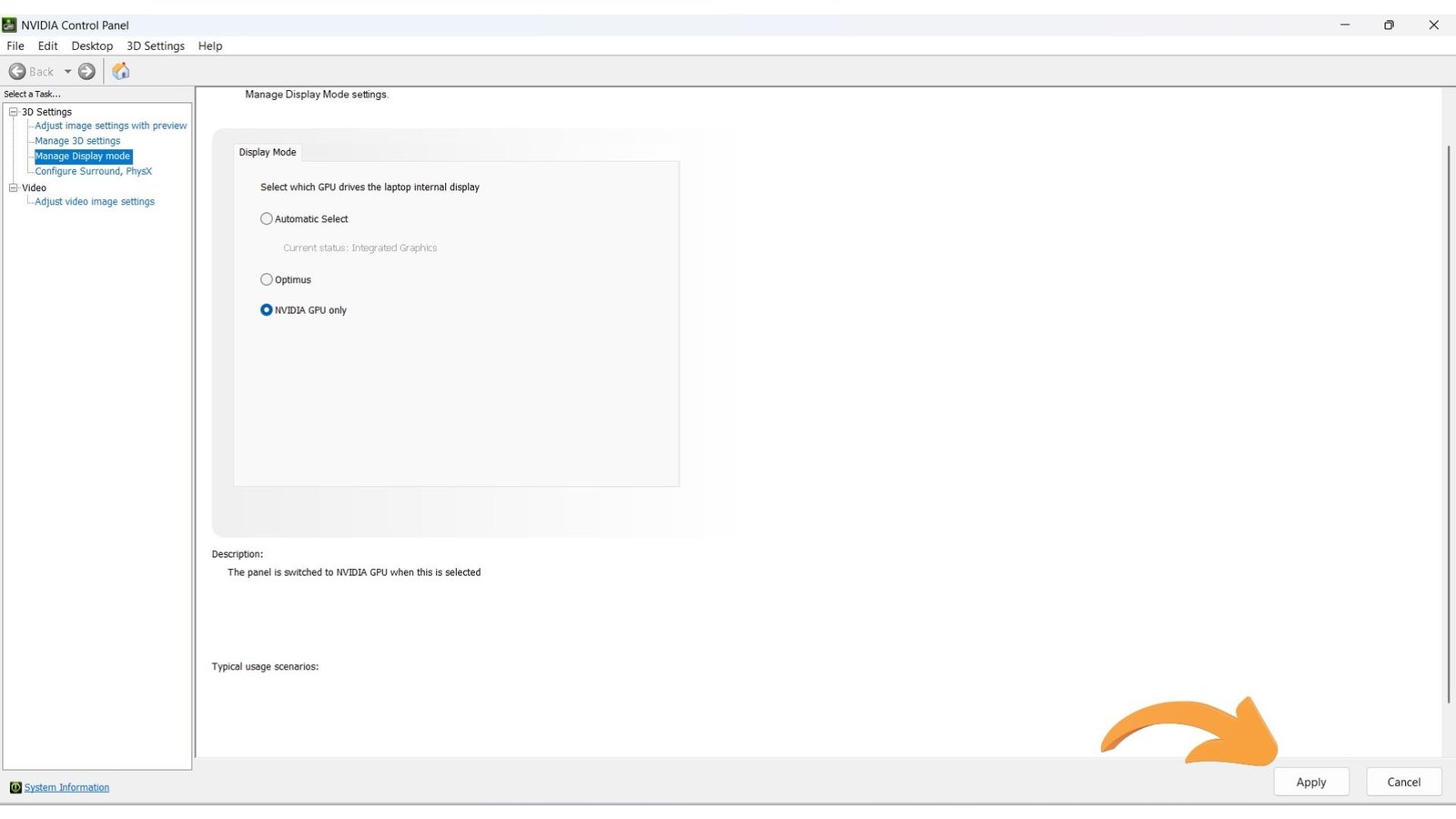
Set Display Mode To 'Dedicated GPU Only' From NVIDIA or AMD's Control Panel
Whether you are Nvidia or AMD’s user set your Display Mode to ‘Dedicated GPU Only’ from their Control Panel. This setting makes all your Windows applications run on dedicated GPU like Nvidia’s RTX5050, 3050 etc. This setting will fix the valorant black screen in Windows.
If we set it to Integrated Graphics then it makes all windows application run on IGPU which is not suitable for heavy Rendering, Gaming etc.
This setting is best suited for lightweight tasks like Web Browsing, Watching Content on Youtube, etc. It consumes less power.
Change VGC Startup Type To Automatic
VGC is Riot Vanguard service used by VALORANT for its anti-cheat system.
There are three VGC startup type available in windows:
- Manual- It means that Windows doesn’t automatically start the VGC service at boot, but it can only be started when needed.
- Disabled- The VGC service can’t start, So VALORANT work properly.
- Automatic- This setting lets Windows start the Vanguard service automatically when needed during startup.
We need to set VGC startup type to automatic to fix VALORANT black screen in windows, Because If we don’t do it then Windows don’t start the Vanguard service automatically when required during startup, that’s why we need to set it to automatic. This setting is normal for VALORANT. Now, Let’s do it.
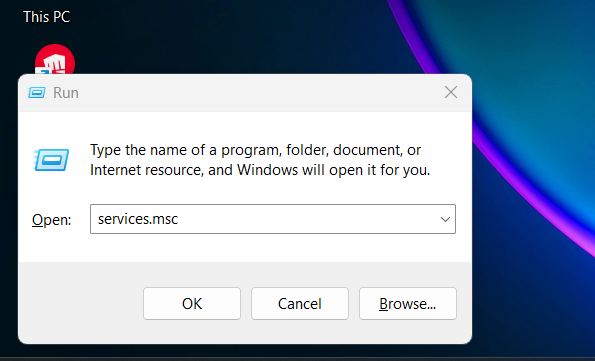
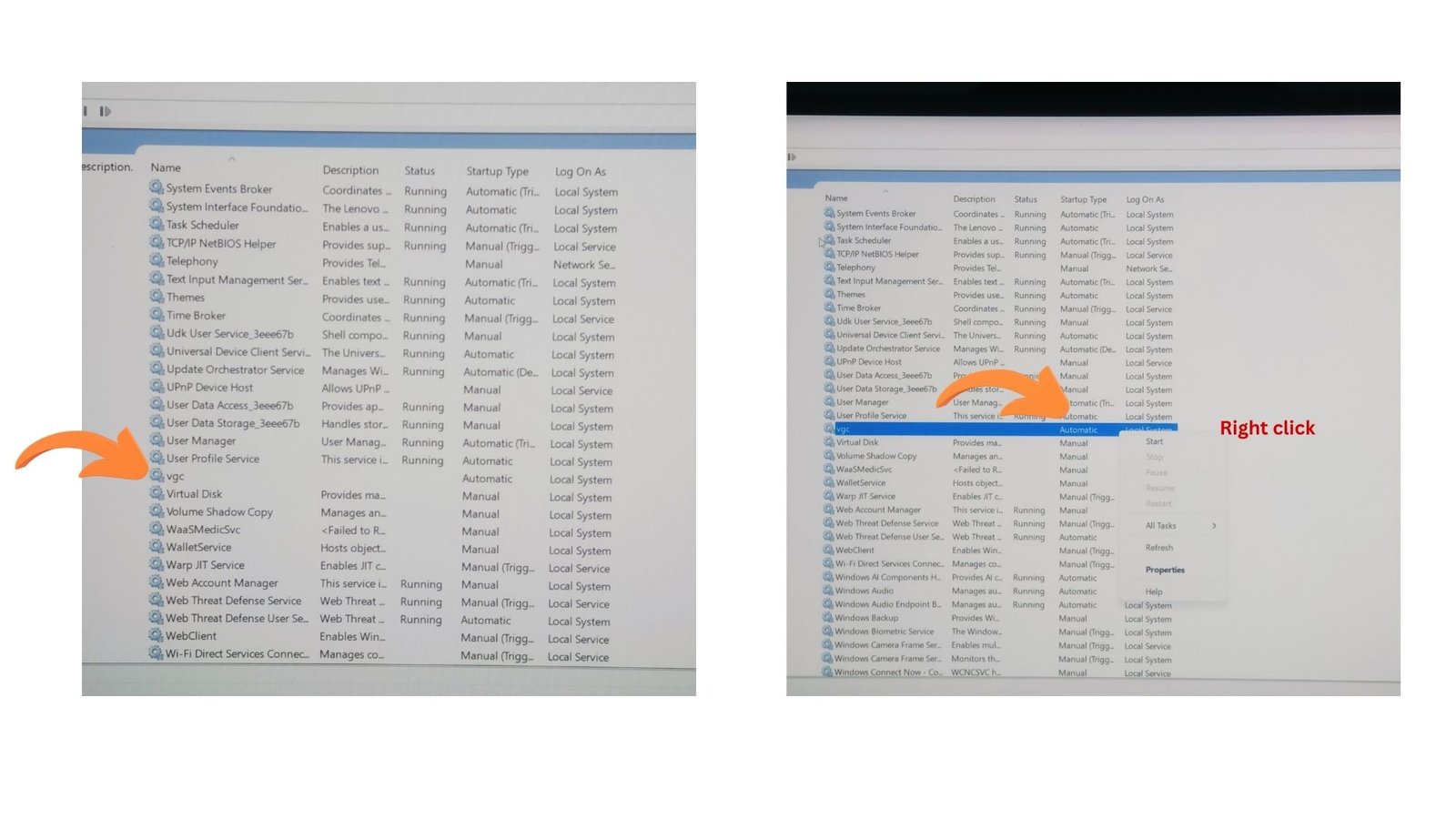
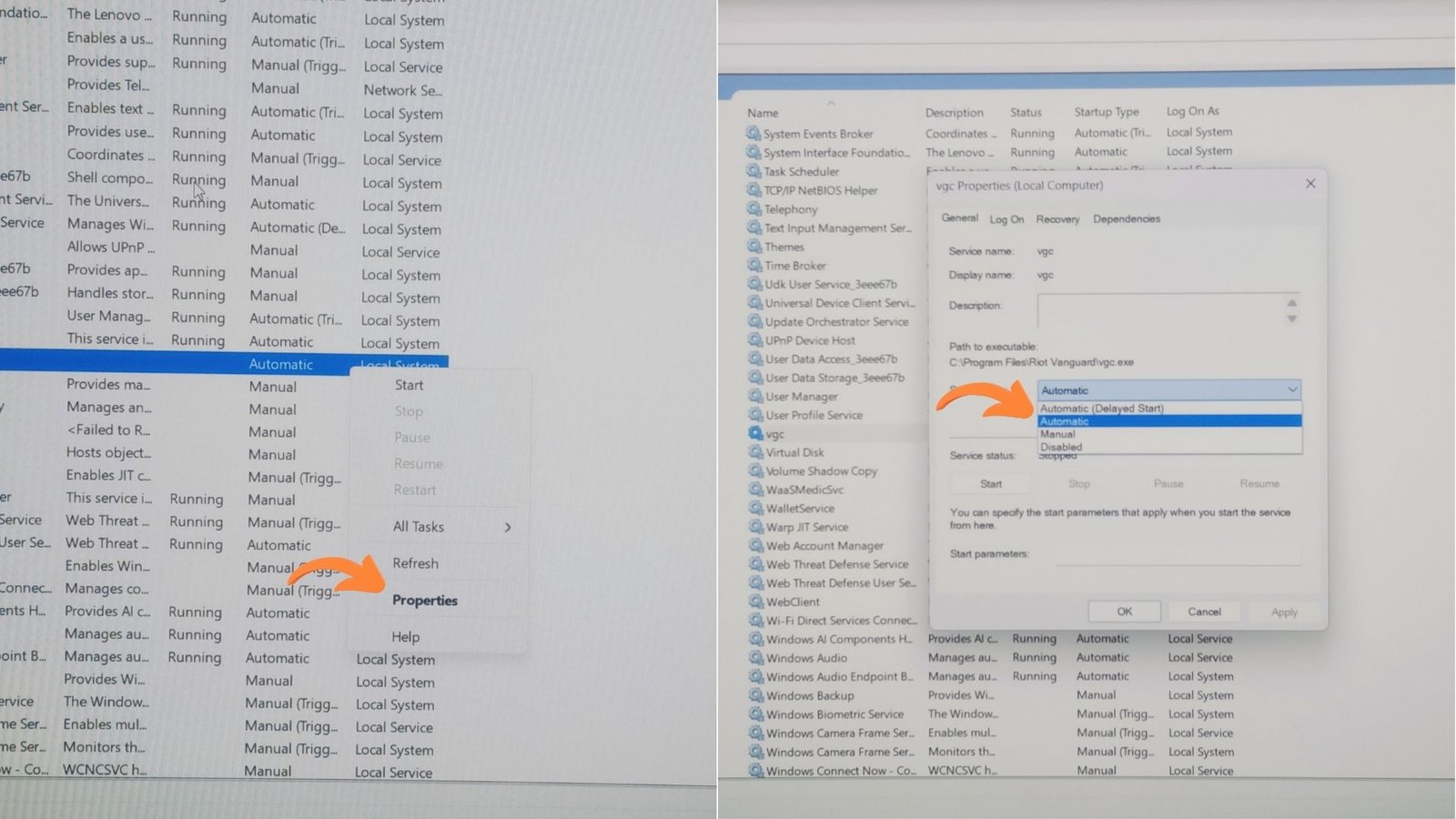
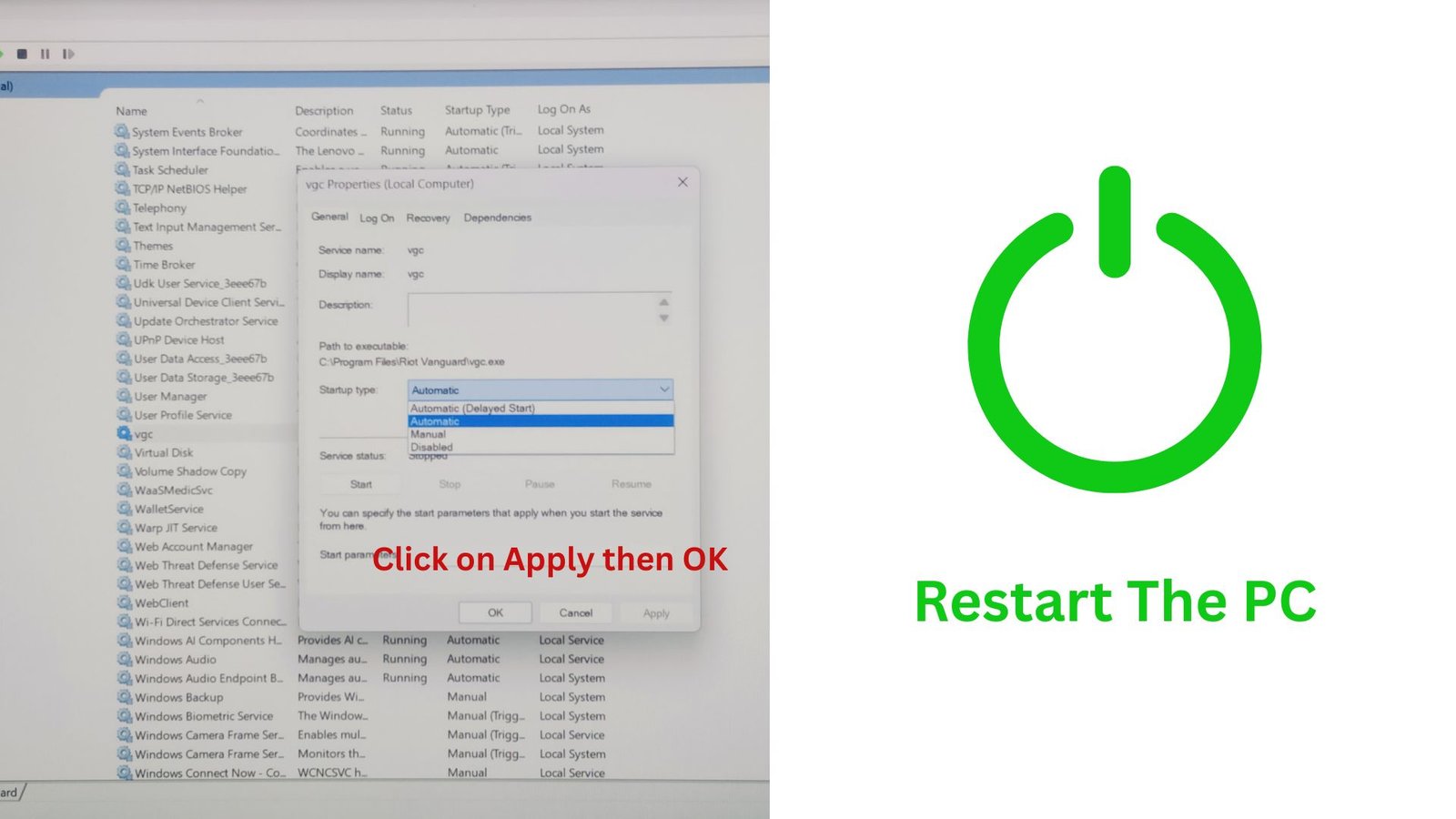
Press Win+R then type Services.msc then scroll down to VGC, Right Click and select Properties then set Startup Type to Automatic.
After that, We need to restart our PC.
Run Riot Client As An Administrator
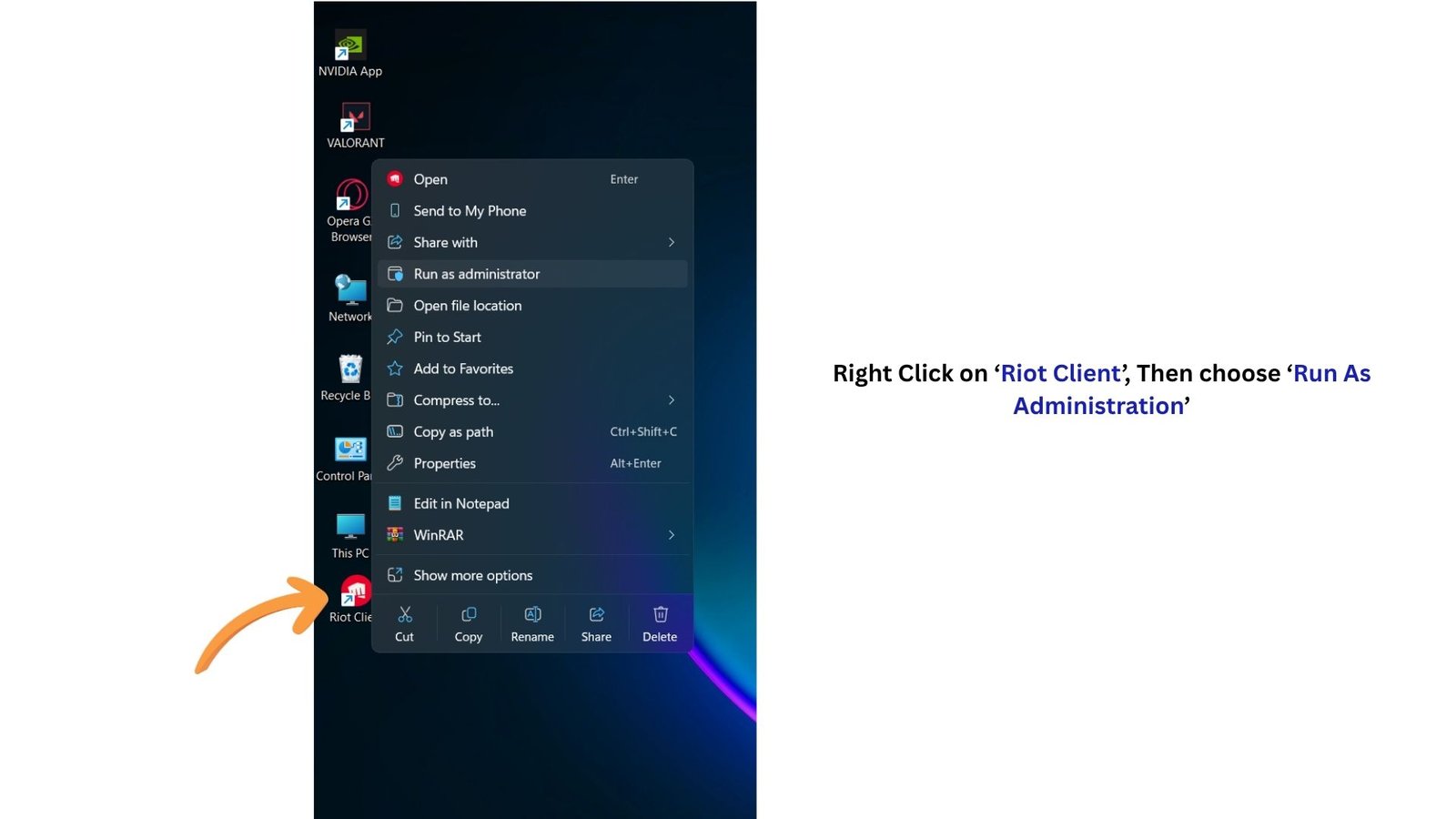
Right click on Riot Client and choose ‘Run As Administration’ this will open the Riot Client then try to launch the Game. Hope it will fix the isssue, If Not then we have one more solution.
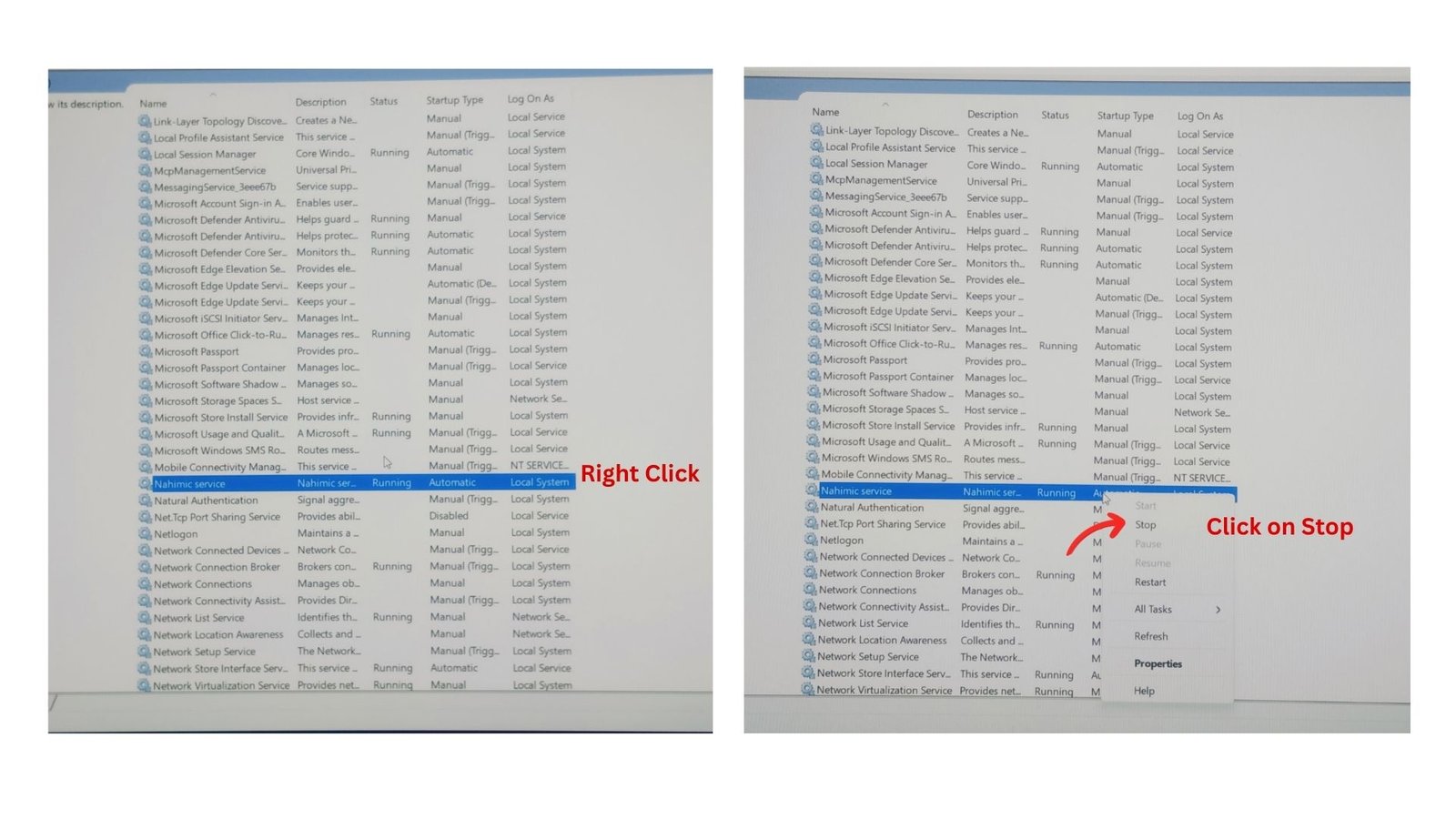
Stop Nahimic Services
Nahimic is a Windows Background service that provides audio- enhancement features for your laptop or PC. It provide features like spatial sound, noise reduction, voice improvement, immersive audio, balanced audio and equalizer etc.
To run VALORANT sometimes we need to stop this kind of software because this kind of software or its drivers can conflict with vanguard or cause startup or launch issues.
Press Win+R then type ‘Services.msc’ then scroll down to ‘Nahimic Services’ then Right Click and choose ‘Stop’, this will stop the Nahimic services. I hope this is the most important setting that you can do to open Valorant.