- Update Graphics Driver.
- Repair Game Files.
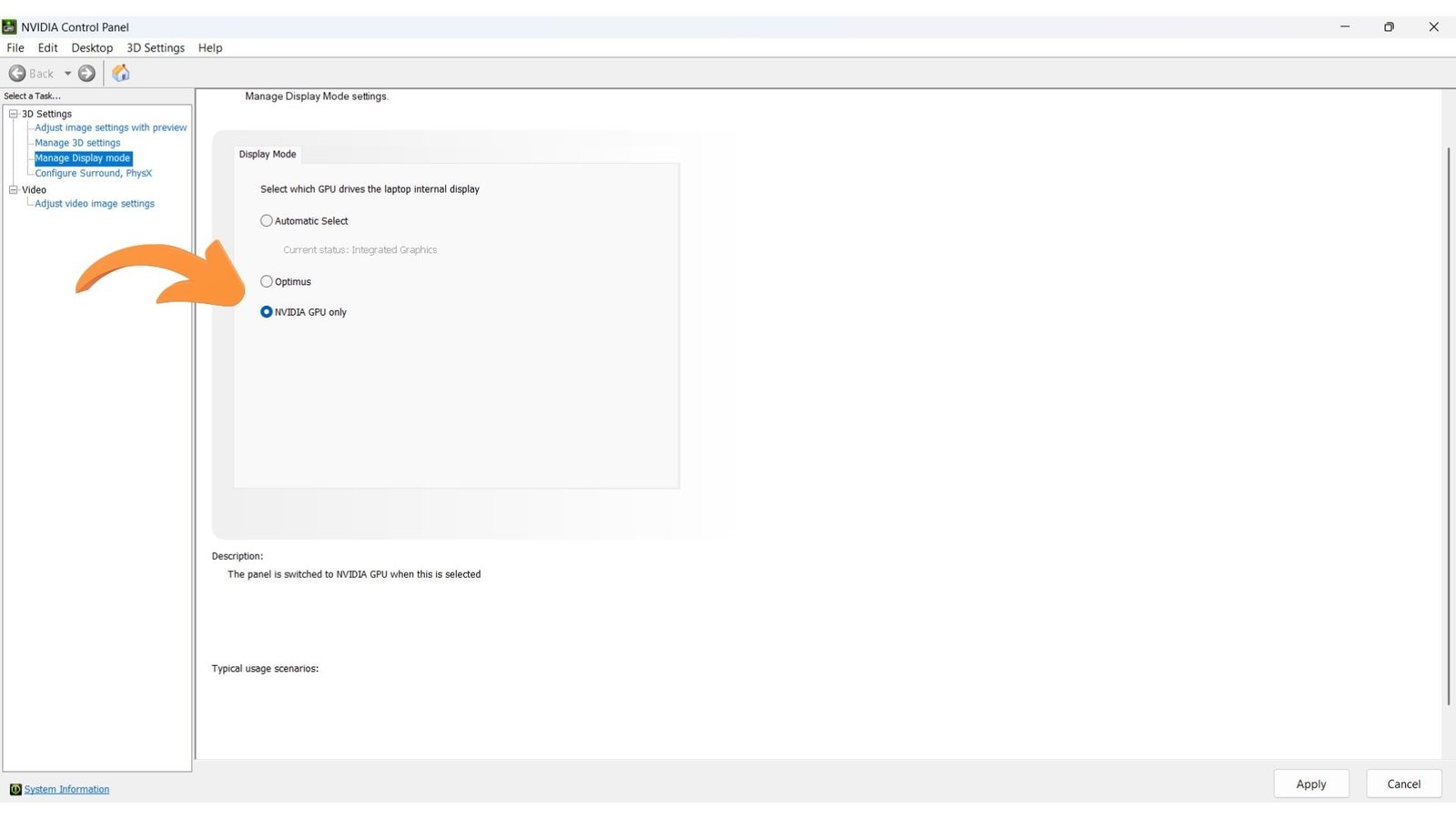
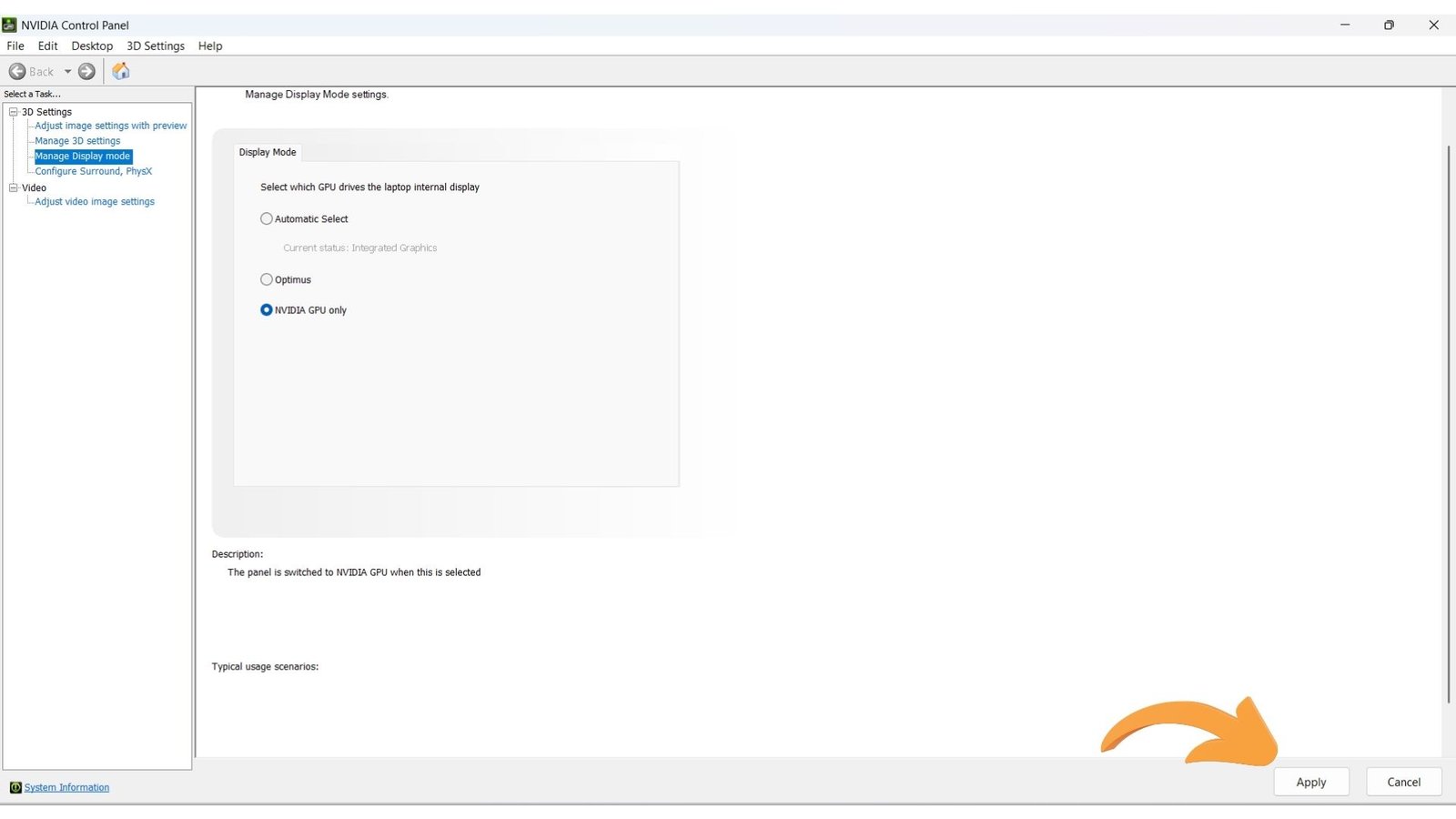
- Set Display Mode To ‘Dedicated GPU Only’ From NVIDIA or AMD’s Control Panel.
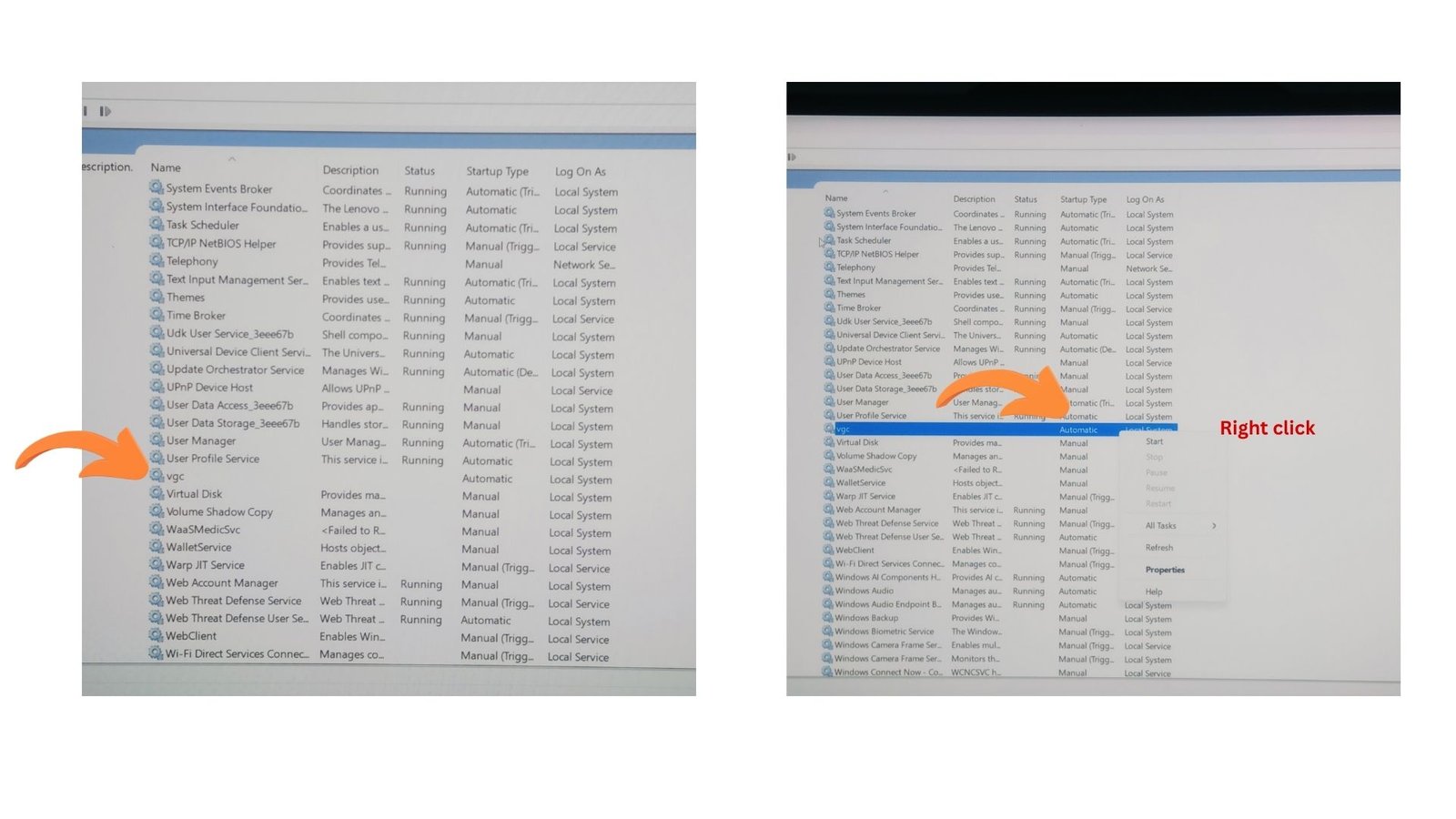
- Change The VGC Startup Type To Automatic.
- Restart Your PC After Setting VGC Startup Type to Automatic.
- Run Riot Client As An Administrator.
- Stop Nahimic Services.
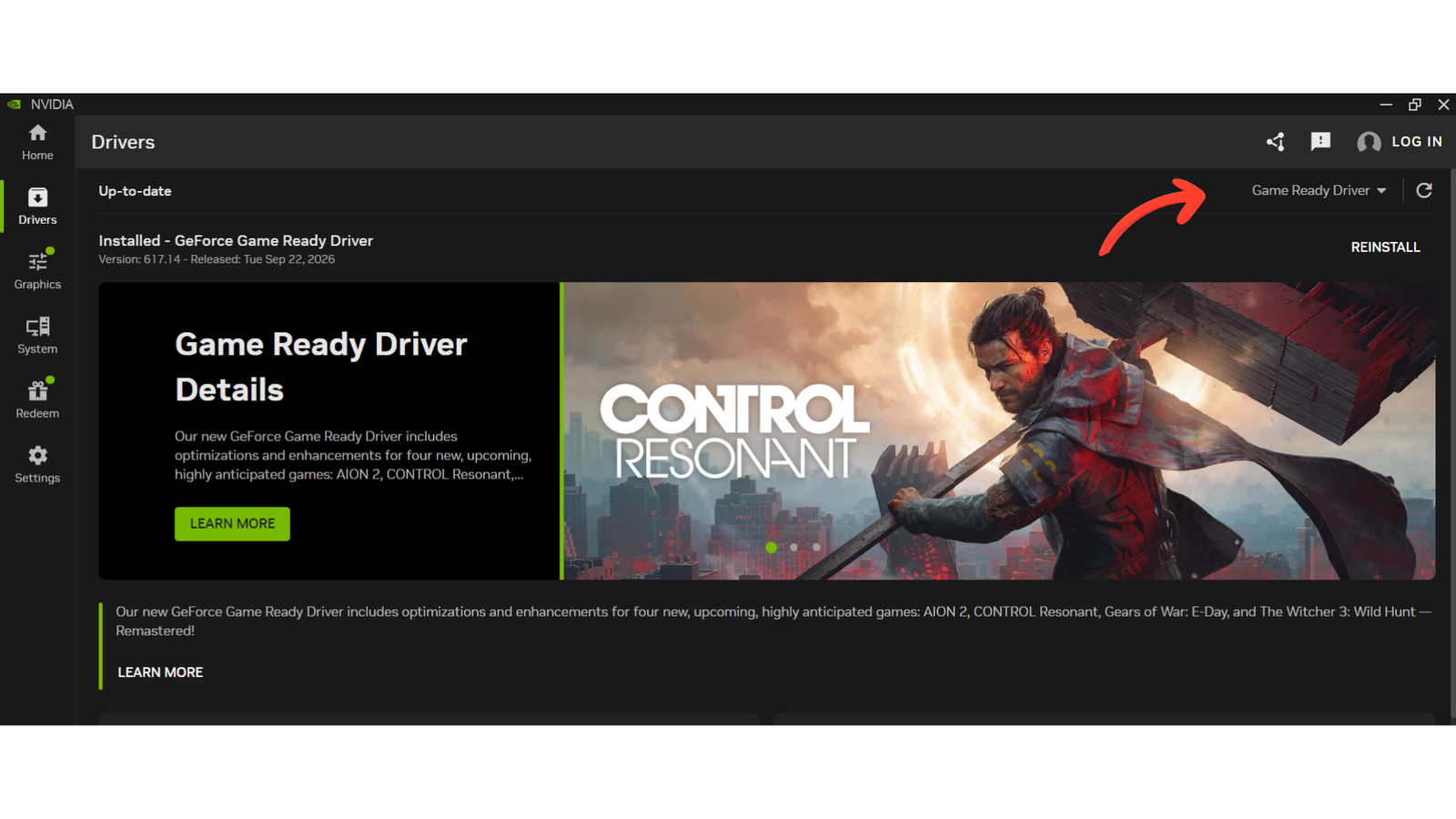
Update Graphics Driver
Whether you’re NVIDIA or AMD’s user, First of all Install latest Graphic Drivers from their App.
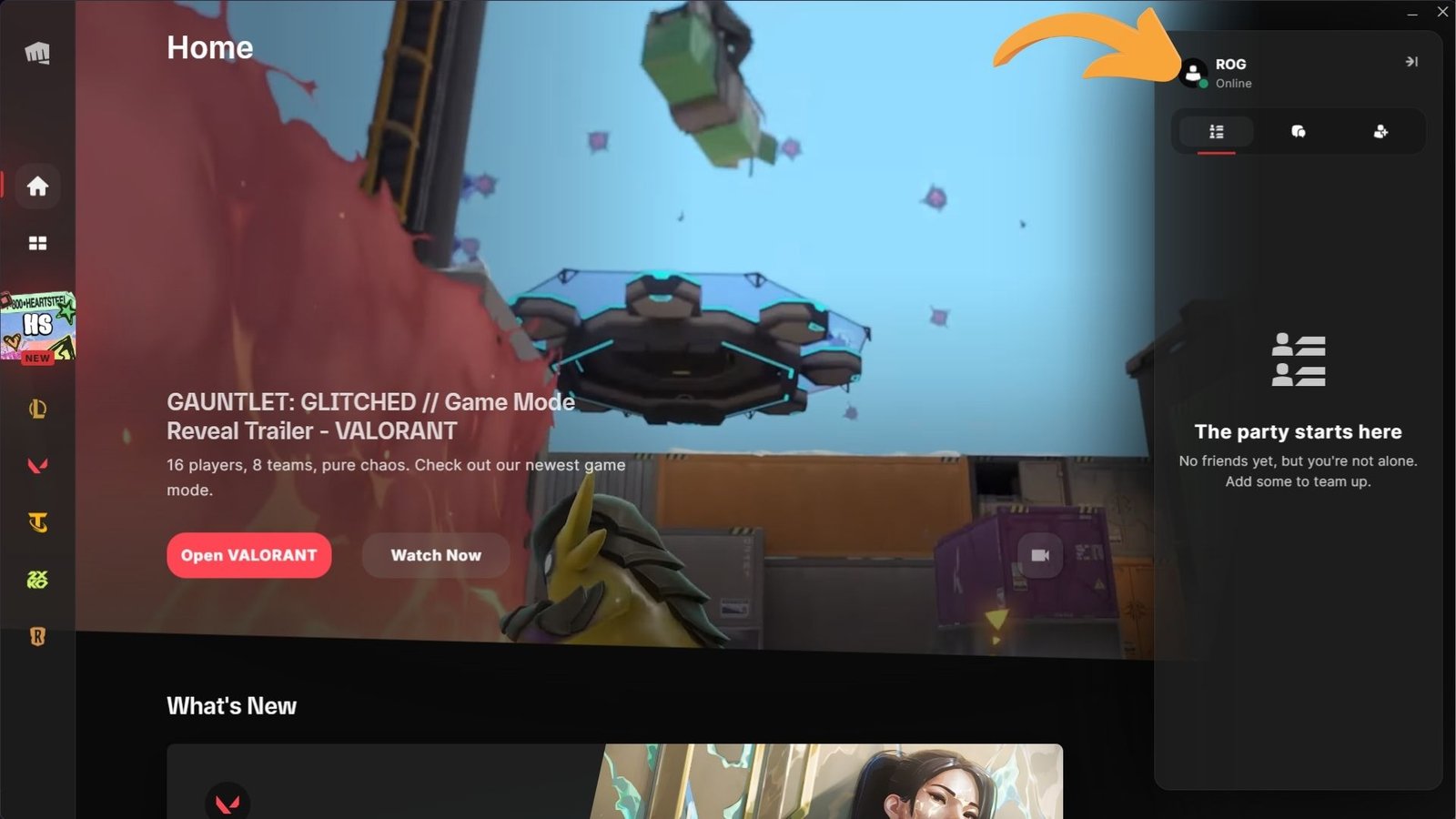
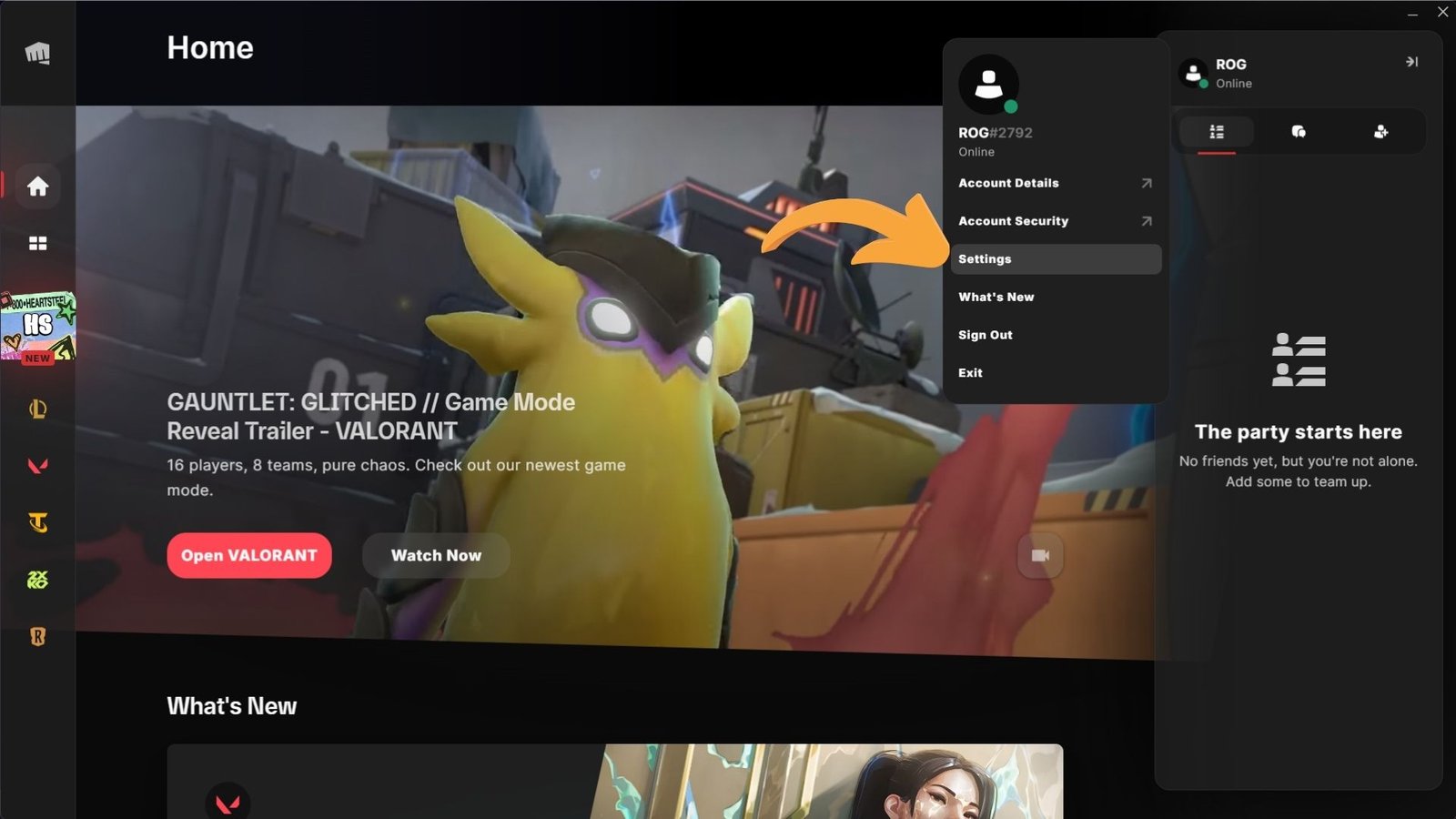
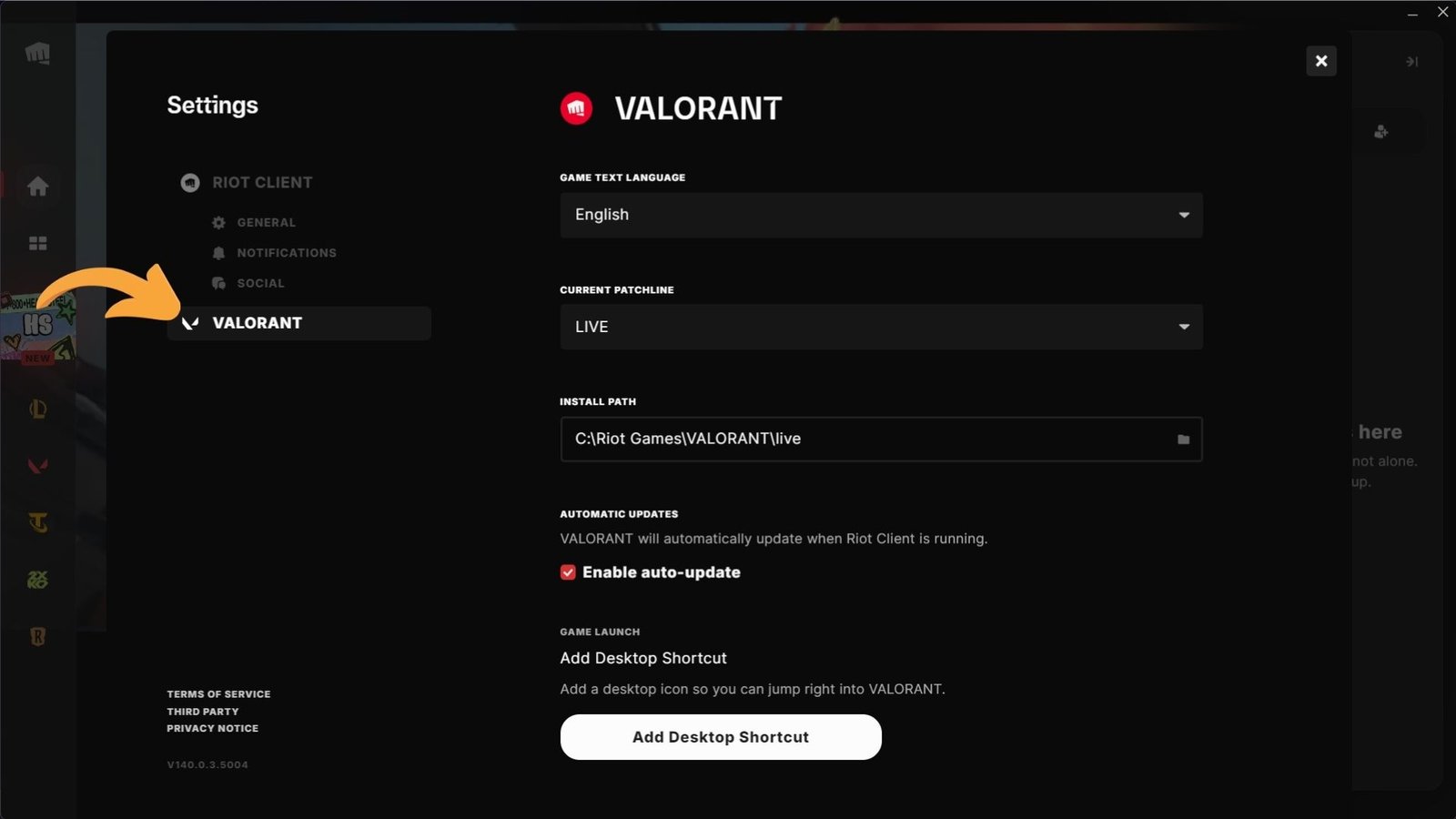
Repair Game Files
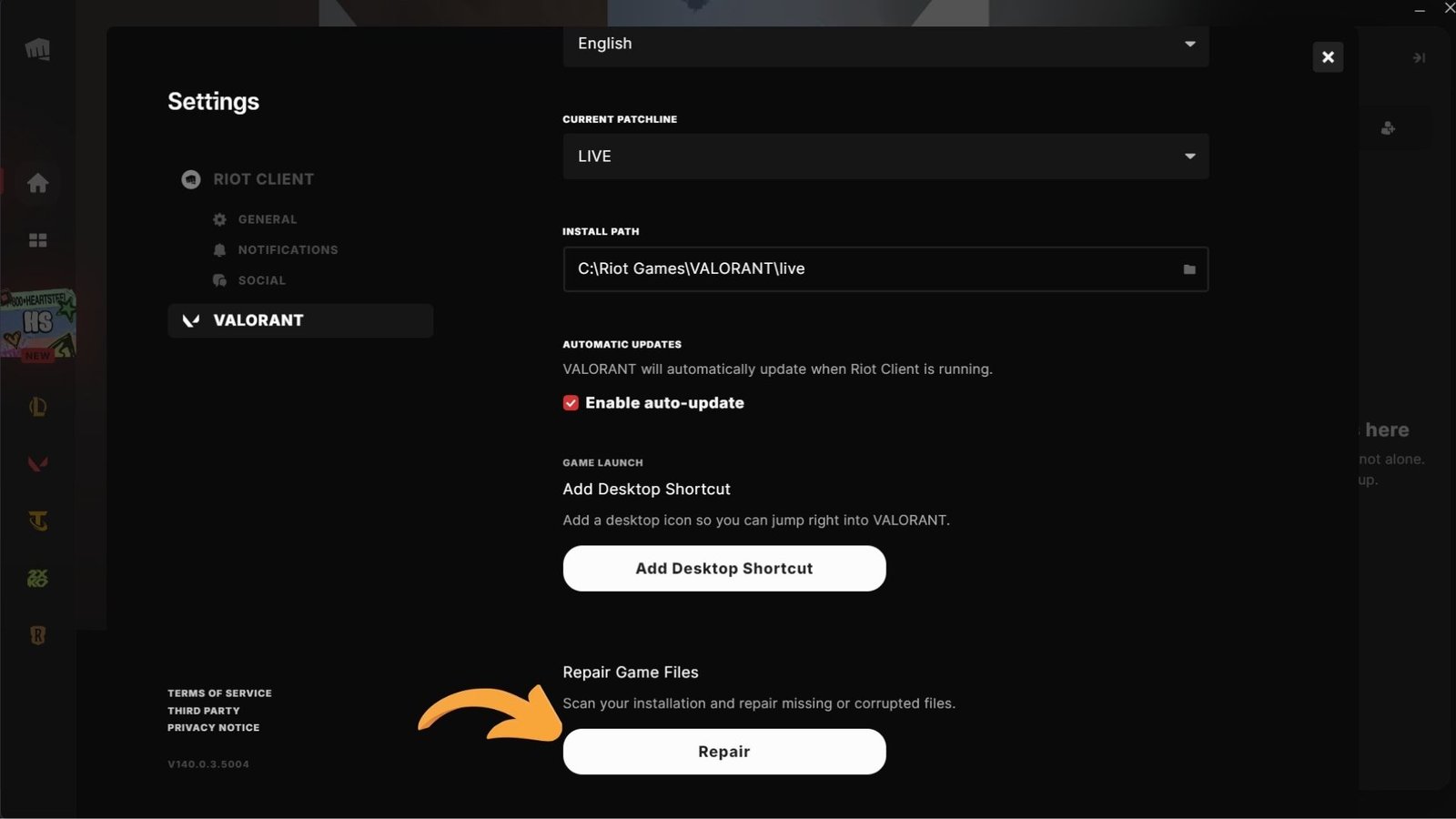
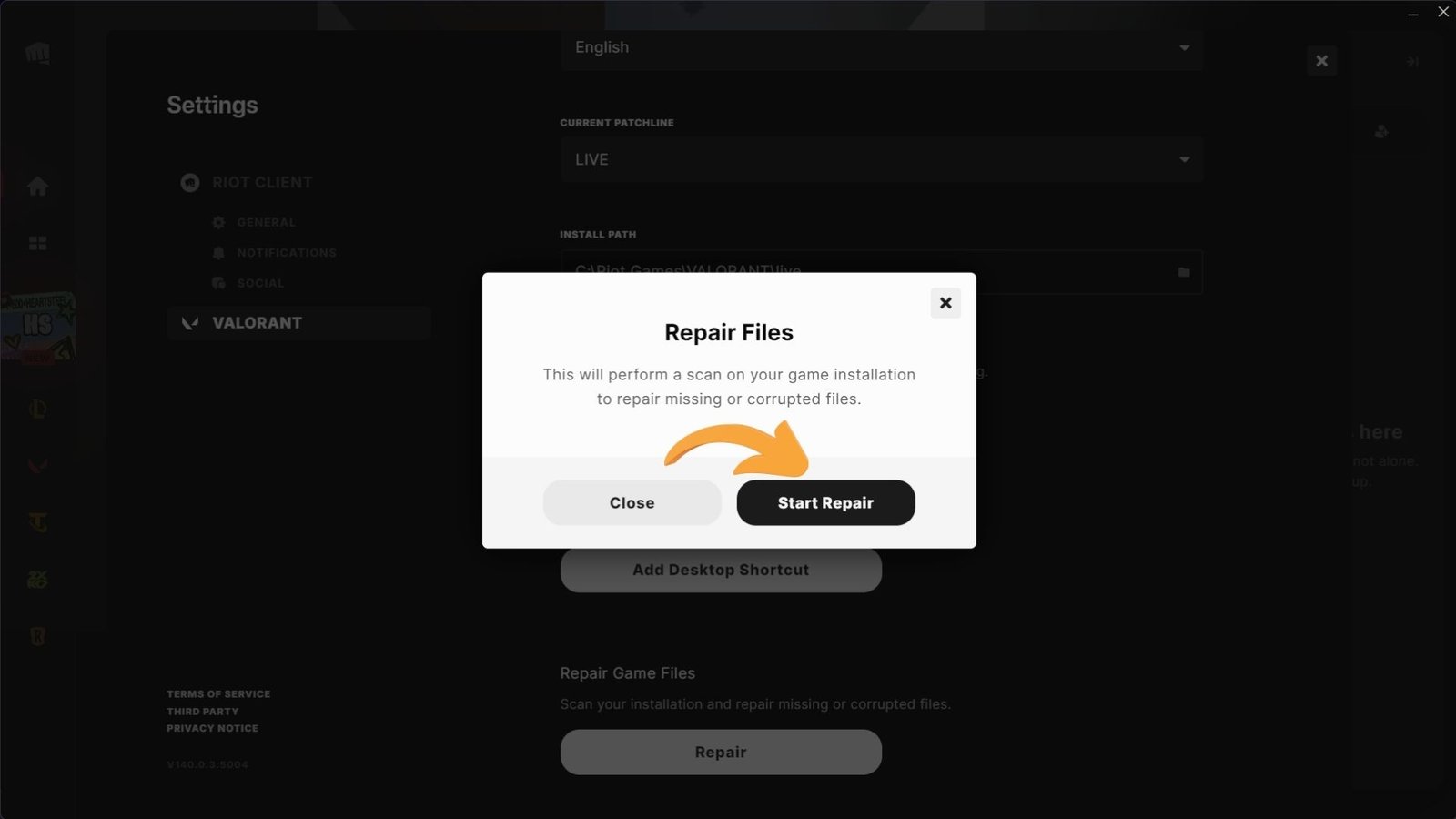
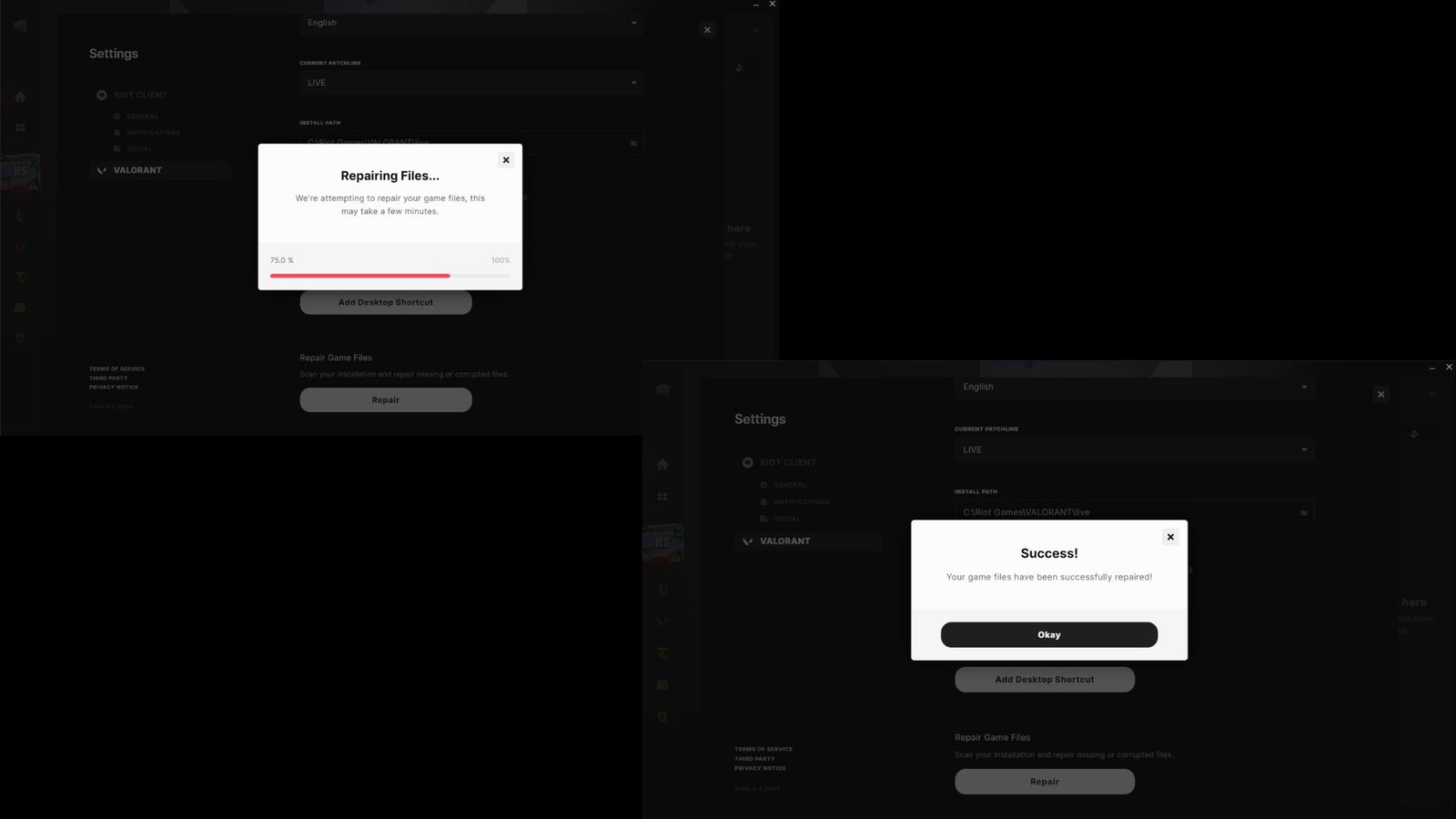
Open ‘Riot Client’ then select your profile then click on Settings then choose ‘Repair Game File’.Wait till your game file get repaired.
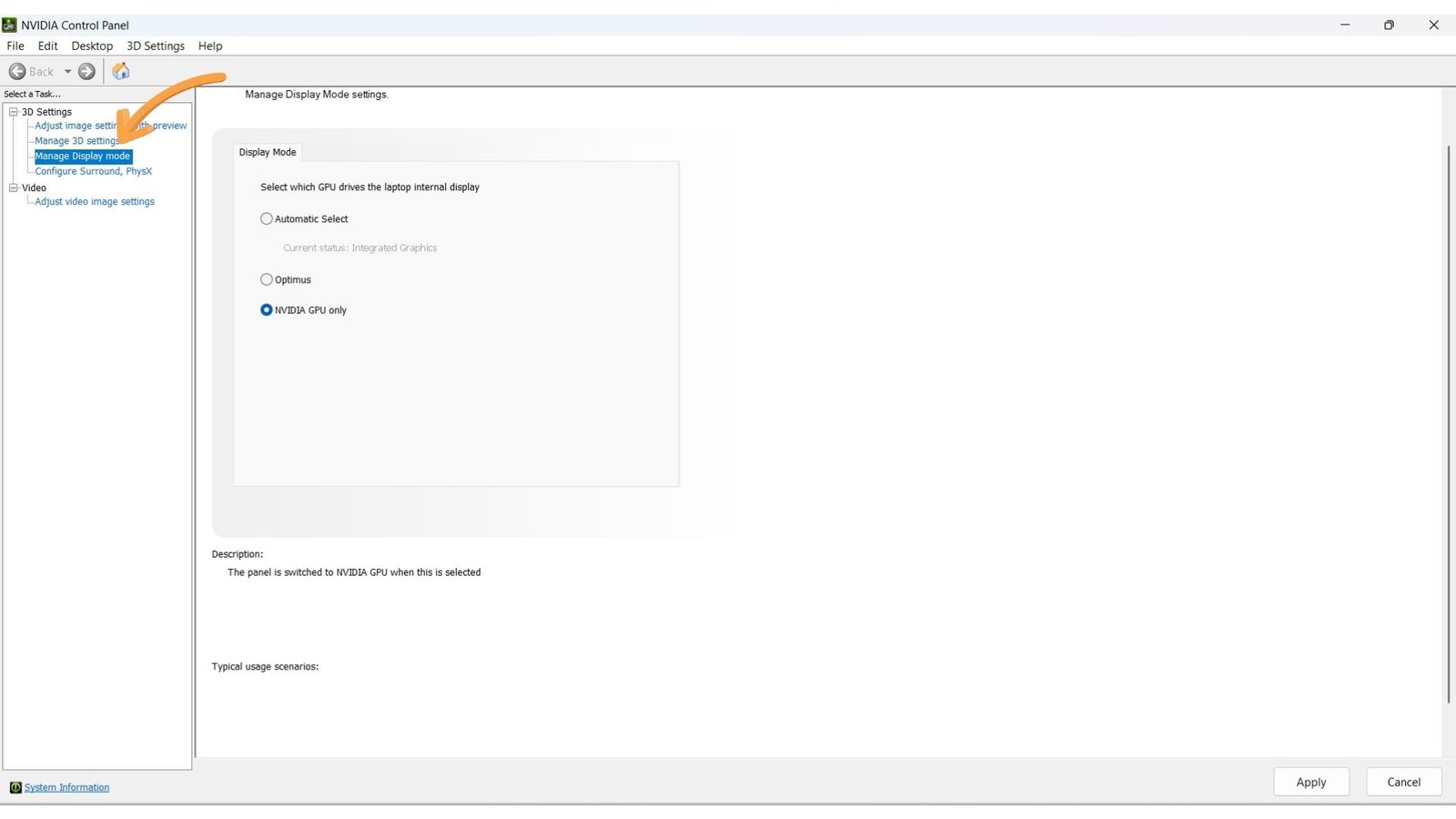
Set Display Mode To 'Dedicated GPU Only' From NVIDIA or AMD's Control Panel
Whether you are Nvidia or AMD’s user set your Display Mode to ‘Dedicated GPU Only’ from their Control Panel.
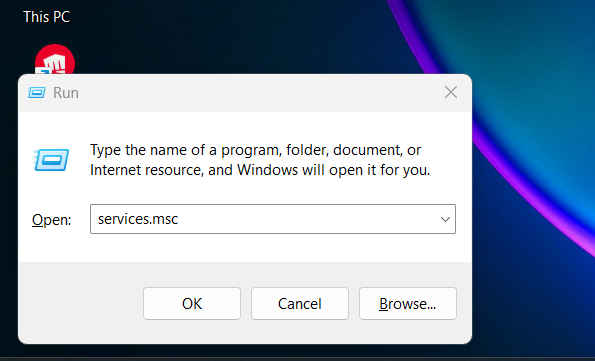
Change VGC Startup Type To Automatic
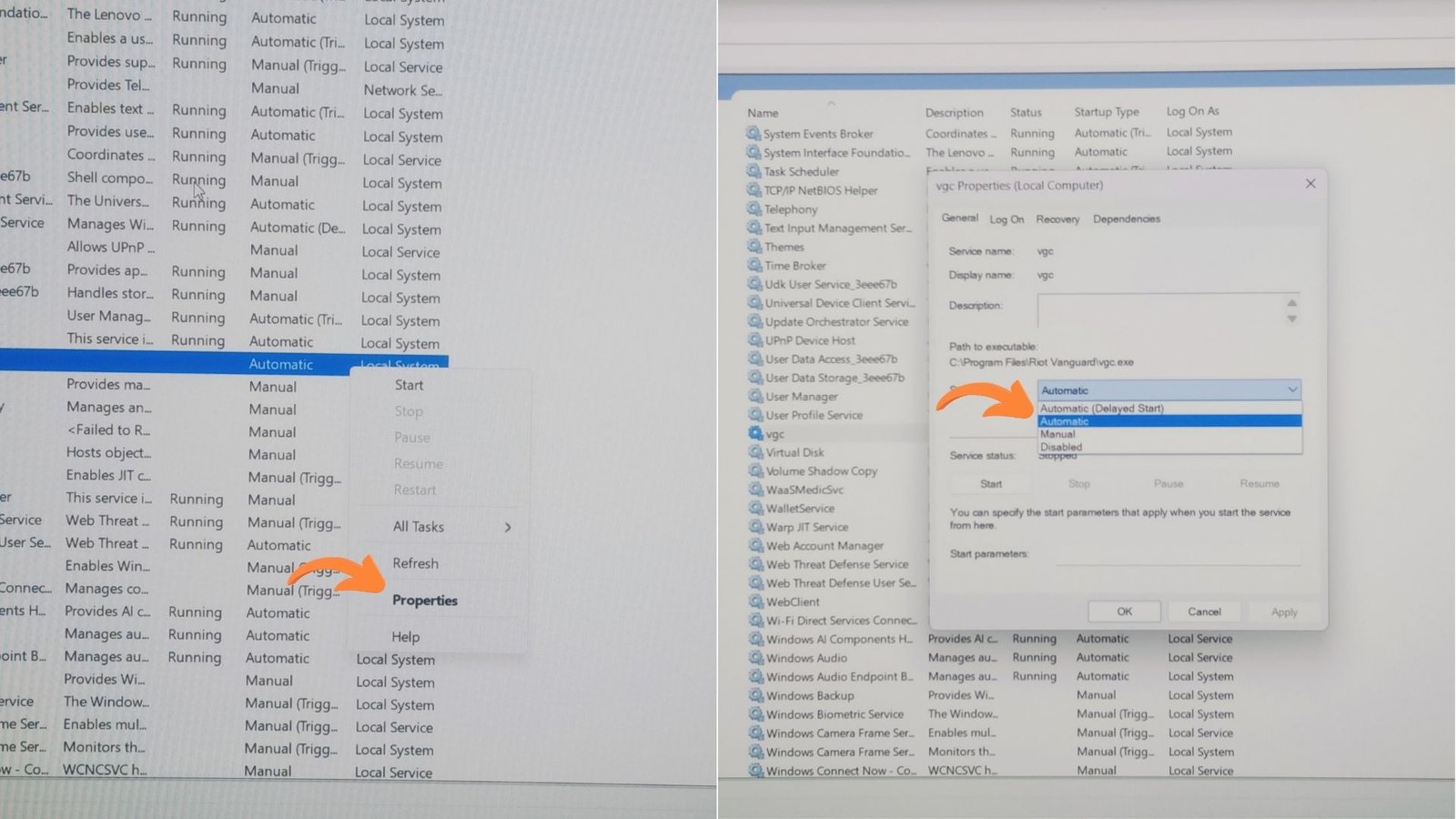
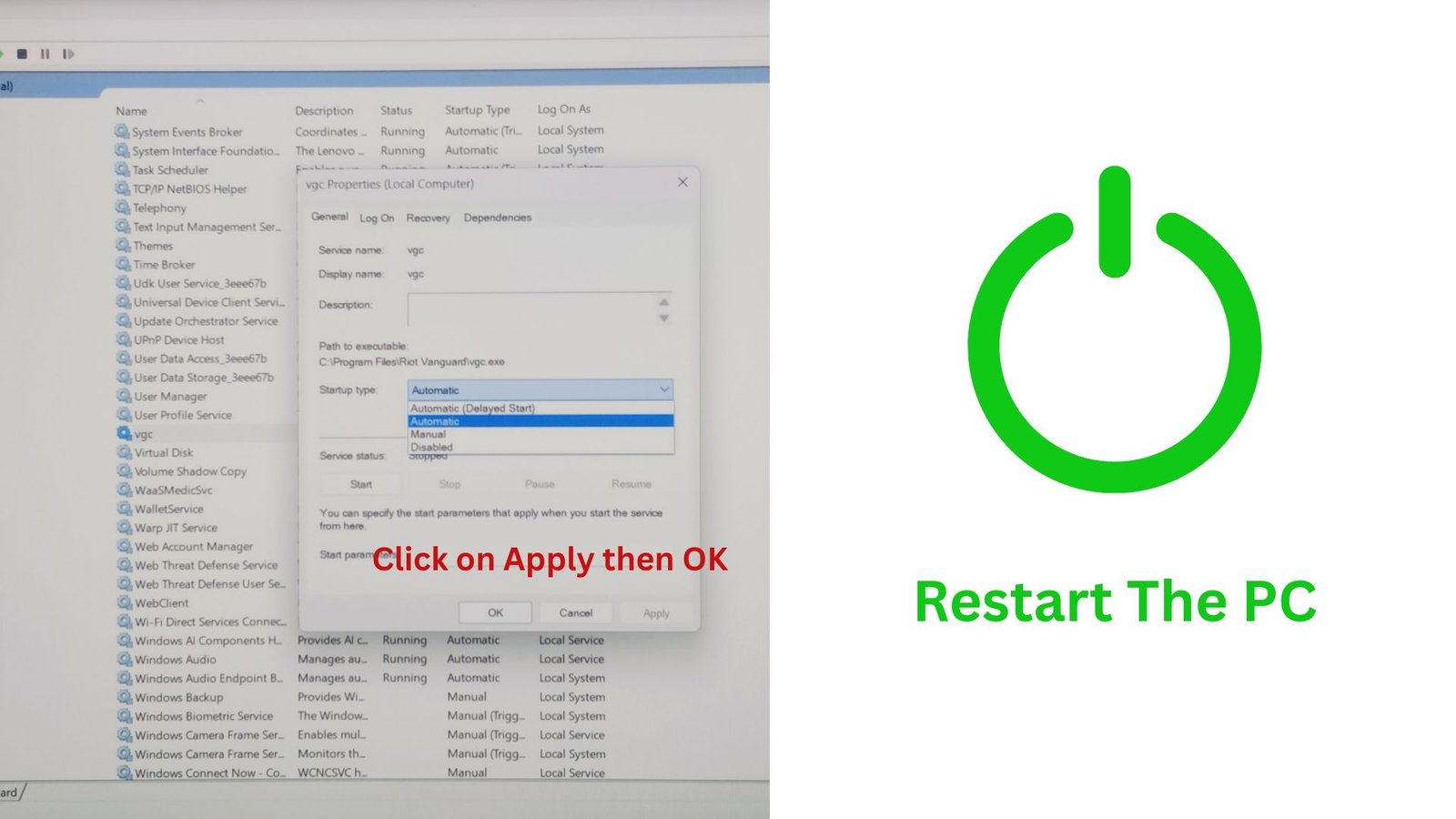
Press Win+R then type Services.msc then scroll down to VGC, Right Click and select Properties then set Startup Type to Automatic.
After that, We need to restart our PC.
Run Riot Client As An Administrator
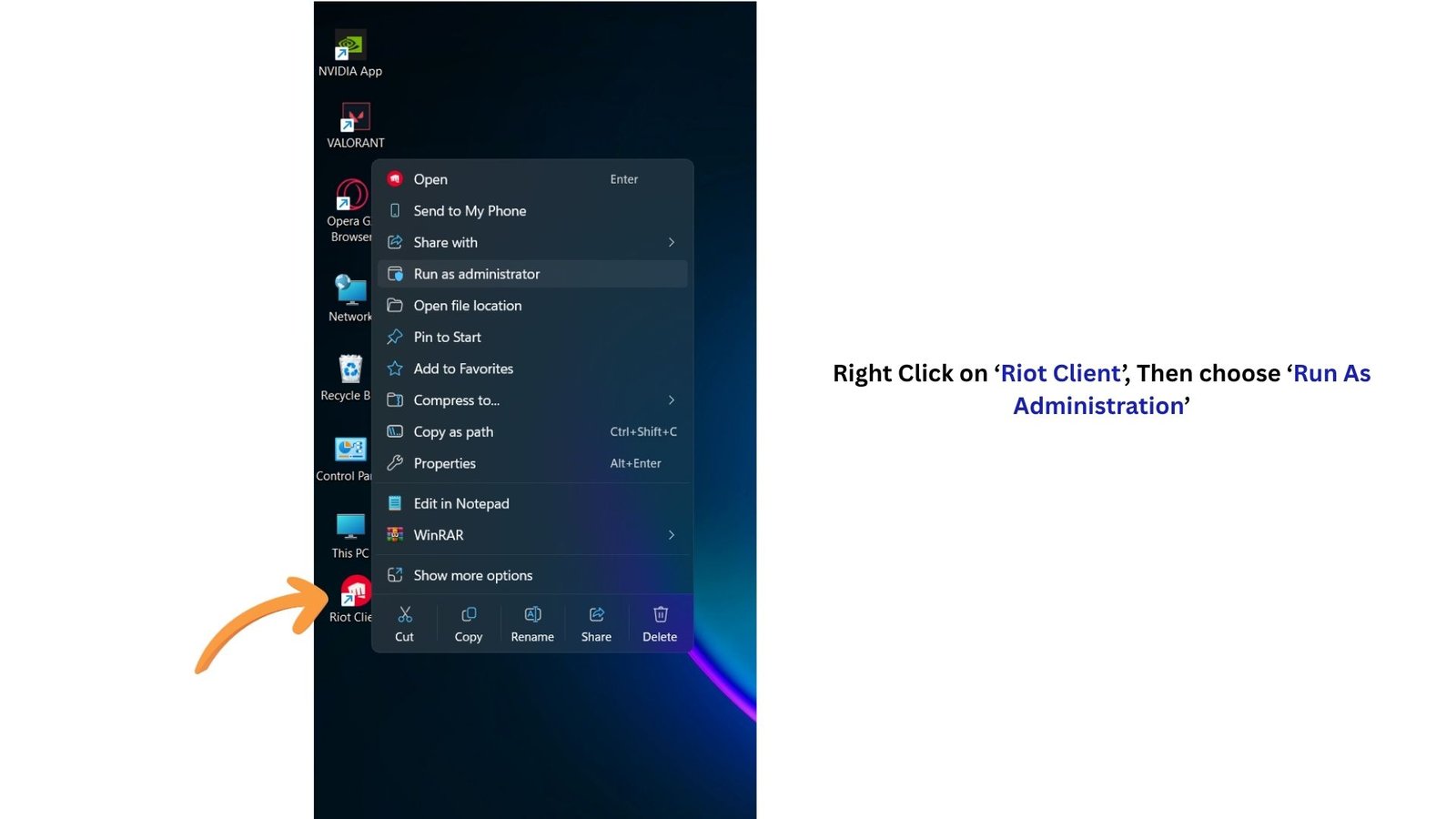
Right click on Riot Client and choose ‘Run As Administration’ this will open the Riot Client then try to launch the Game. Hope it will fix the isssue, If Not then we have one more solution.
Stop Nahimic Services
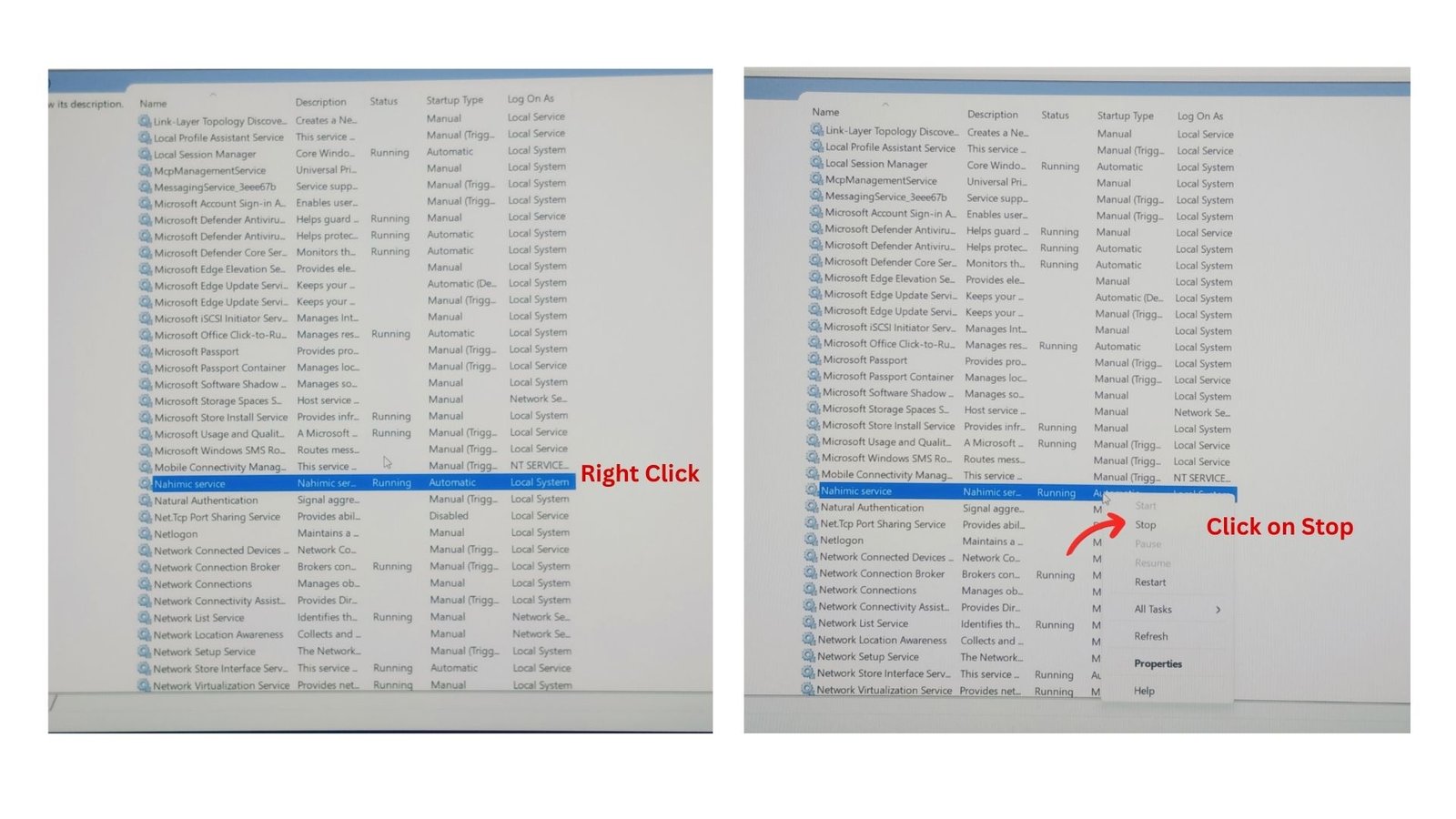
Press Win+R then type ‘Services.msc’ then scroll down to ‘Nahimic Services’ then Right Click and choose ‘Stop’, this will stop the Nahimic services.This the most important setting that you can do to open Valorant.